Guide
Manage candidates
Add, edit, and organize candidates in your talent pool.
The Candidates section is your central talent pool. Every applicant — whether added by hand, parsed from a CV, or submitted through the public apply form — appears here.
Open the candidates list
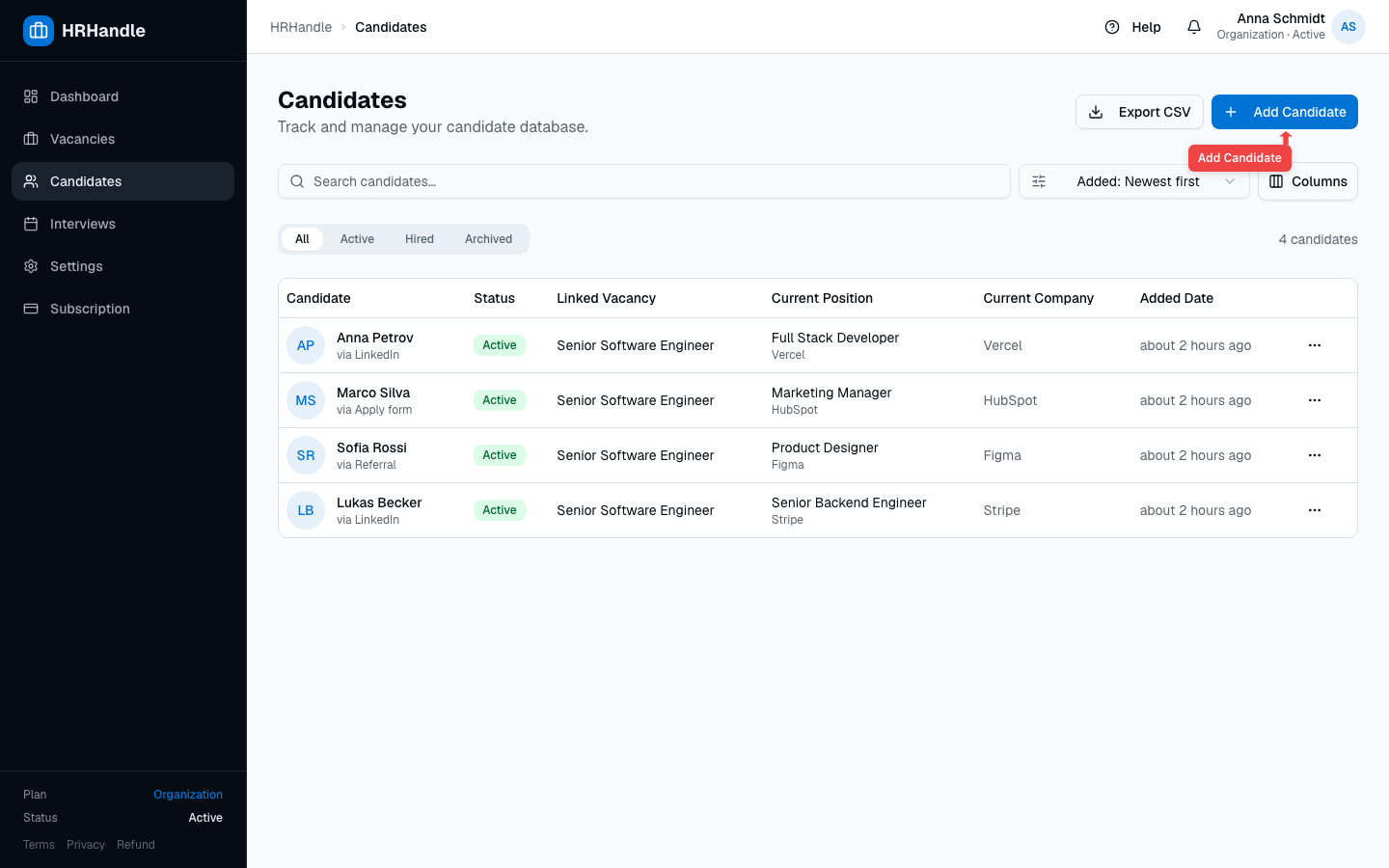
From the sidebar, click Candidates. You will see the list of every candidate in your organization, with search, filters, and an Add Candidate action.
Choose how to add the candidate
HRHandle offers two paths so you don't waste time on data entry when the CV already has everything.
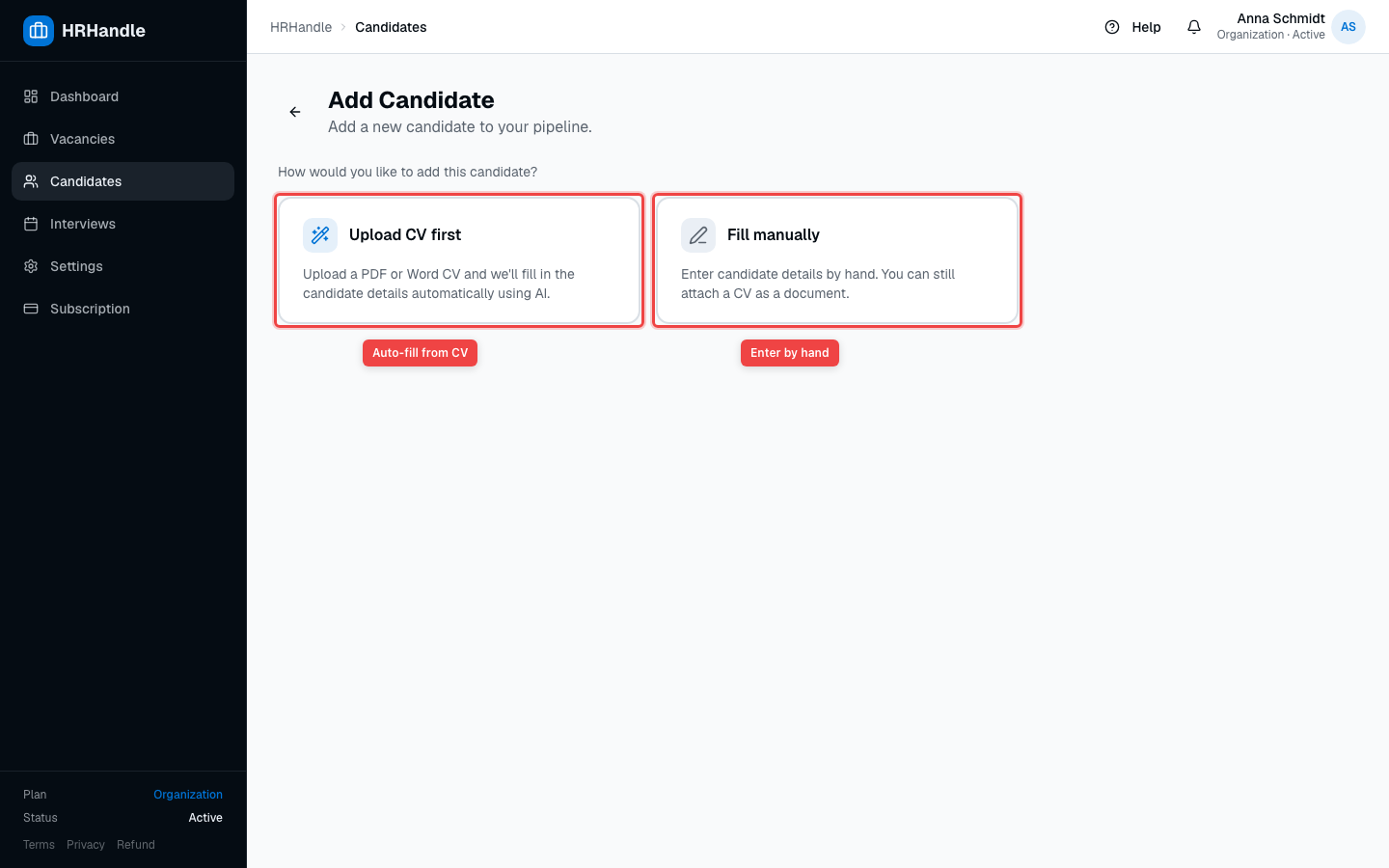
- Upload CV first — Upload a PDF or Word file. HRHandle parses it with AI and pre-fills name, email, phone, LinkedIn URL, work history, and education. Review and submit.
- Fill manually — Open the empty form and type details by hand. You can still attach a CV as a document later.
Either path saves to the same candidate record.
View and edit a candidate
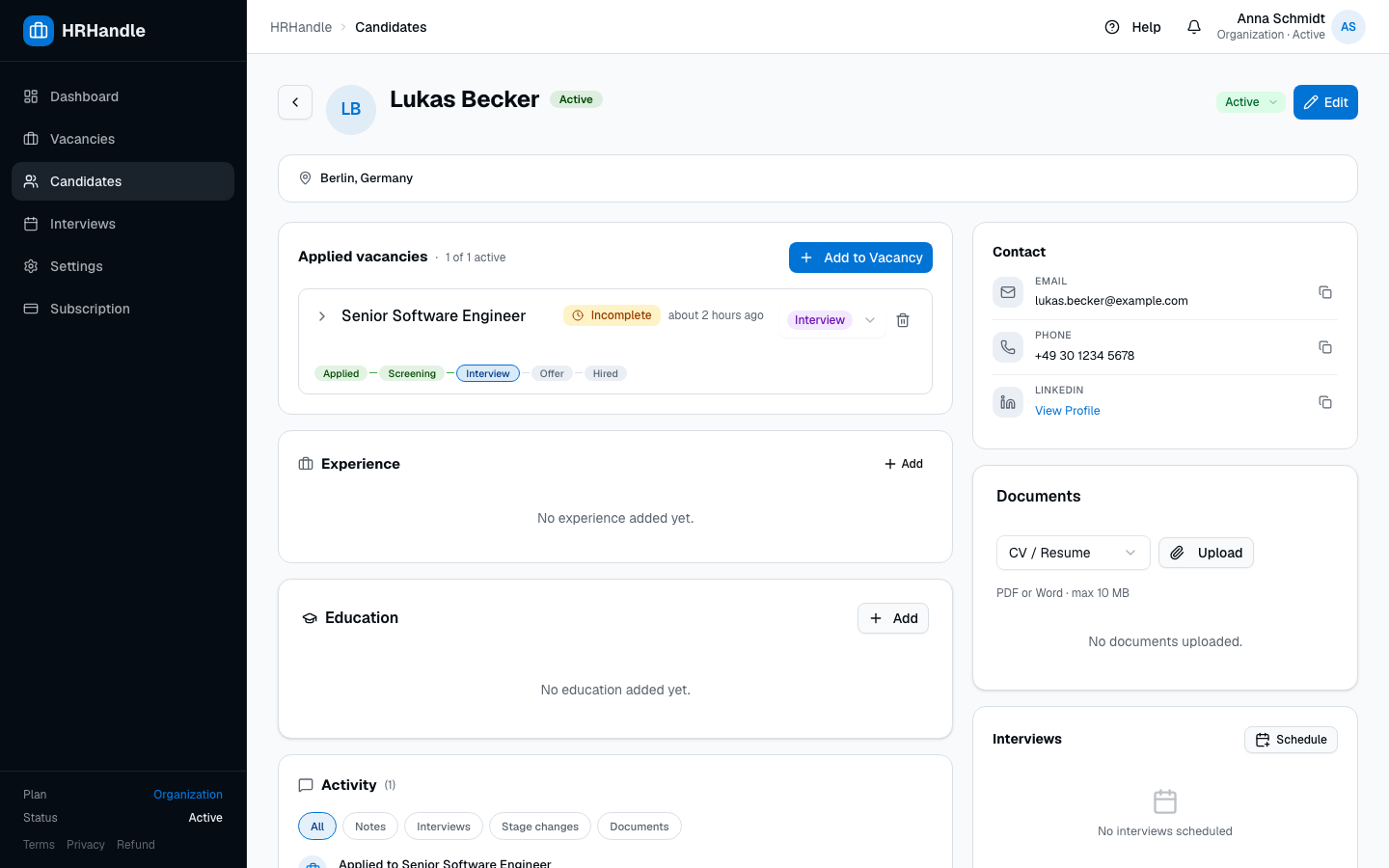
Click any row in the list to open the candidate detail page. From there you can:
- Edit personal details and contact information
- Add or remove work experience and education entries
- Attach documents (CVs, cover letters, portfolios)
- Add internal notes
- Change the candidate's general status (Active, Hired, Archived)
- See every application that links them to a vacancy
Search and filter the list
The top of the candidates list has a search box and status tabs.
- Search matches against first name, last name, and email.
- Status tabs filter by Active, Hired, or Archived.
- Columns lets you choose which fields appear in the table — useful if you store custom data like preferred languages or notice period.
General status vs. application status
These are two different things:
| Status type | Where it lives | What it means |
|---|---|---|
| General status | On the candidate | Their relationship with your organization — Active, Hired, Archived. |
| Application status | On each application (candidate ↔ vacancy) | Where they are in a specific hiring pipeline — Applied, Screening, Interview, Offer, Hired, Rejected. |
When you move an application to Hired, the candidate's general status automatically syncs to Hired as well. Reverting the application reverts the candidate.
Export and bulk actions
The list supports CSV export of every candidate visible after filters and search — useful for offline reporting or compliance. Click the Export CSV button next to Add Candidate.
Bulk import from CSV
Owners and admins can bulk-import candidates from a spreadsheet via Bulk import on the candidates page. The flow is upload → review → confirm → import on a single page (no column-mapping step):
- Upload. Your file must use the downloadable template's exact header row (columns are matched case-insensitively; unknown or missing-required columns are rejected at upload). Only first name and last name are required — email is optional. Limits: 5,000 rows, 10 MB, UTF-8. Comma and semicolon delimiters are both accepted.
- Review. The file is parsed server-side and every row is validated. Errored rows sort to the top; each bad cell is highlighted with a reason (invalid email, phone, experience, LinkedIn, salary, or a duplicate email — already in your org, or repeated in the file). You can edit any cell inline or delete rows; the ready/error counters update live. You cannot proceed while any error remains — fix it or delete the row. Your edits are saved automatically and survive a page refresh for 24 hours.
- Confirm & import. A read-only preview of exactly what will be created, then the import runs as a background job with a live progress bar (it keeps running if you close the tab; you can cancel between batches — already-created candidates remain). When it finishes you get a count of imported candidates and a link to view just this import's candidates.
Duplicates are never merged and existing candidates are never updated — a duplicate is an error you resolve by editing the email or deleting the row. Imported candidates count against your plan's candidate limit. Every imported candidate is stamped with the import so you can filter the list to a single import (?import=<id>).