Guide
Pipeline (Kanban)
Move applications through stages with drag and drop.
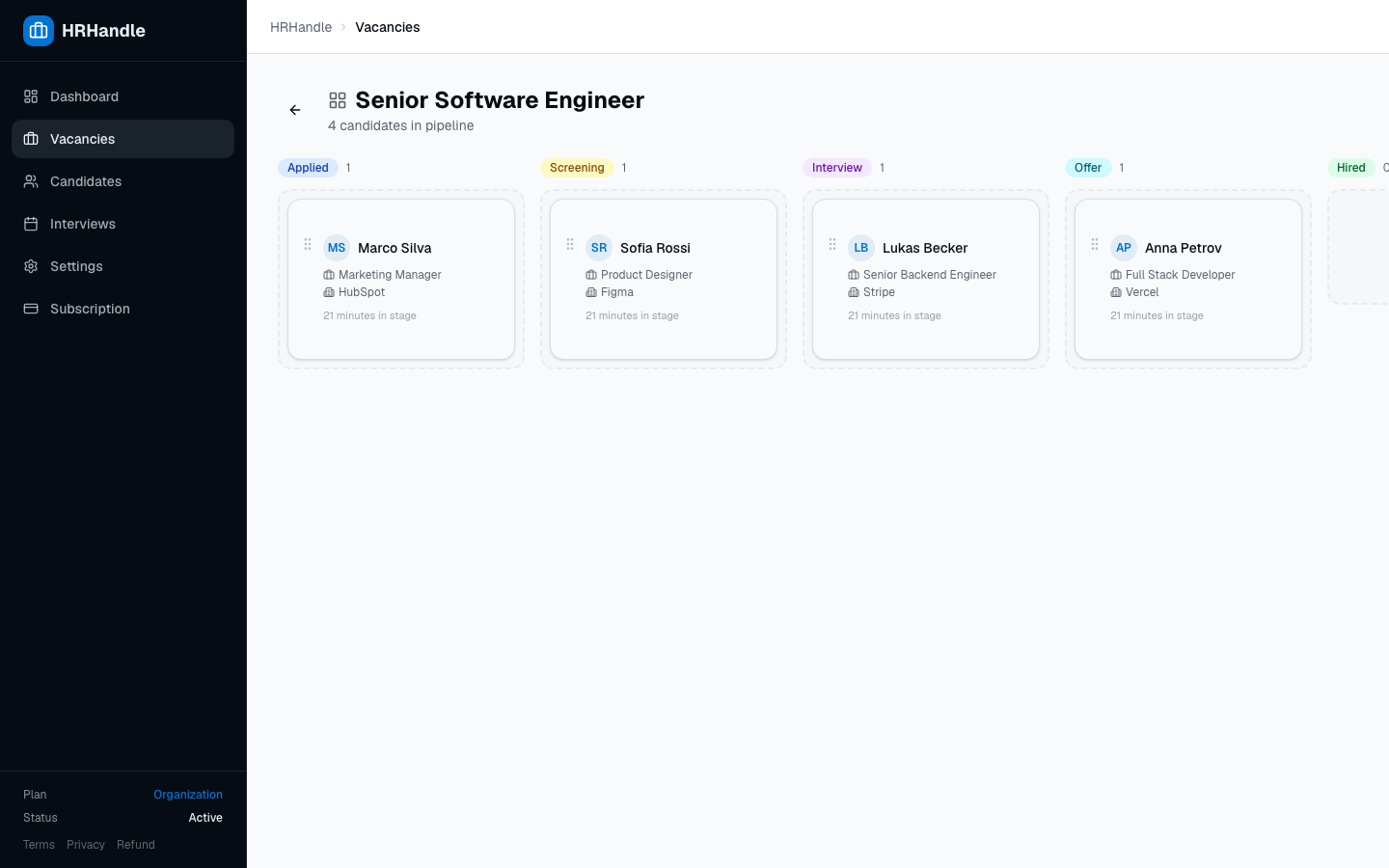
The pipeline is a per-vacancy Kanban board. Each column is a hiring stage; each card is a candidate's application. Drag a card from one column to another to move the candidate forward.
Open the pipeline
From any vacancy detail page, click the Pipeline button in the top-right header. You can also reach it from the vacancy row's three-dot menu on the Vacancies list.
Standard stages
Every vacancy uses the same set of stages:
| Stage | What it means |
|---|---|
| Applied | New application — needs initial review. |
| Screening | Recruiter / hiring manager has begun reviewing. |
| Interview | At least one interview has been scheduled or completed. |
| Offer | An offer has been extended. |
| Hired | Candidate accepted. The candidate's general status syncs to Hired automatically. |
| Rejected | Candidate declined or was rejected. Triggers the rejection dialog (see below). |
Move a candidate forward
Drag a card from one column to the next. The application's status updates as soon as you drop. Notifications and timestamps are recorded automatically — no save button.
You can also click the three-dot menu on any card to change status by selecting it from a list, useful on touch devices or for keyboard users.
Rejecting a candidate
Dropping a card on Rejected opens a dialog where you can:
- Pick a rejection reason from your configured list
- Pick an email template
- Toggle whether to send the rejection email or just record it
Rejection reasons and templates are configured in Settings → Rejection Reasons and Settings → Email Templates. Variables like {{candidate_name}} and {{role}} are substituted automatically when the email is sent.
If you do not want to send an email, toggle Send rejection email off and confirm. The rejection itself is recorded either way.
Hired and the general status sync
Moving a card to Hired also flips the candidate's general status (on their profile) to Hired. If you later move the application back out of Hired, the candidate's general status reverts to Active. This keeps the talent pool consistent — you never have a "Hired" application linked to an Active candidate.
Filtering and search
The toolbar above the board lets you search by candidate name and filter by status. Both work the same as on the vacancy's main Candidates tab — useful when the board is busy.