Guide
Custom fields
Add your own fields to vacancies and candidates.
Custom fields let you keep information HRHandle doesn't ask for by default — a referral, a budget approval, a priority. Owners and admins create them in Settings → Custom fields, for candidates and for vacancies, up to 20 of each.
Fields and groups
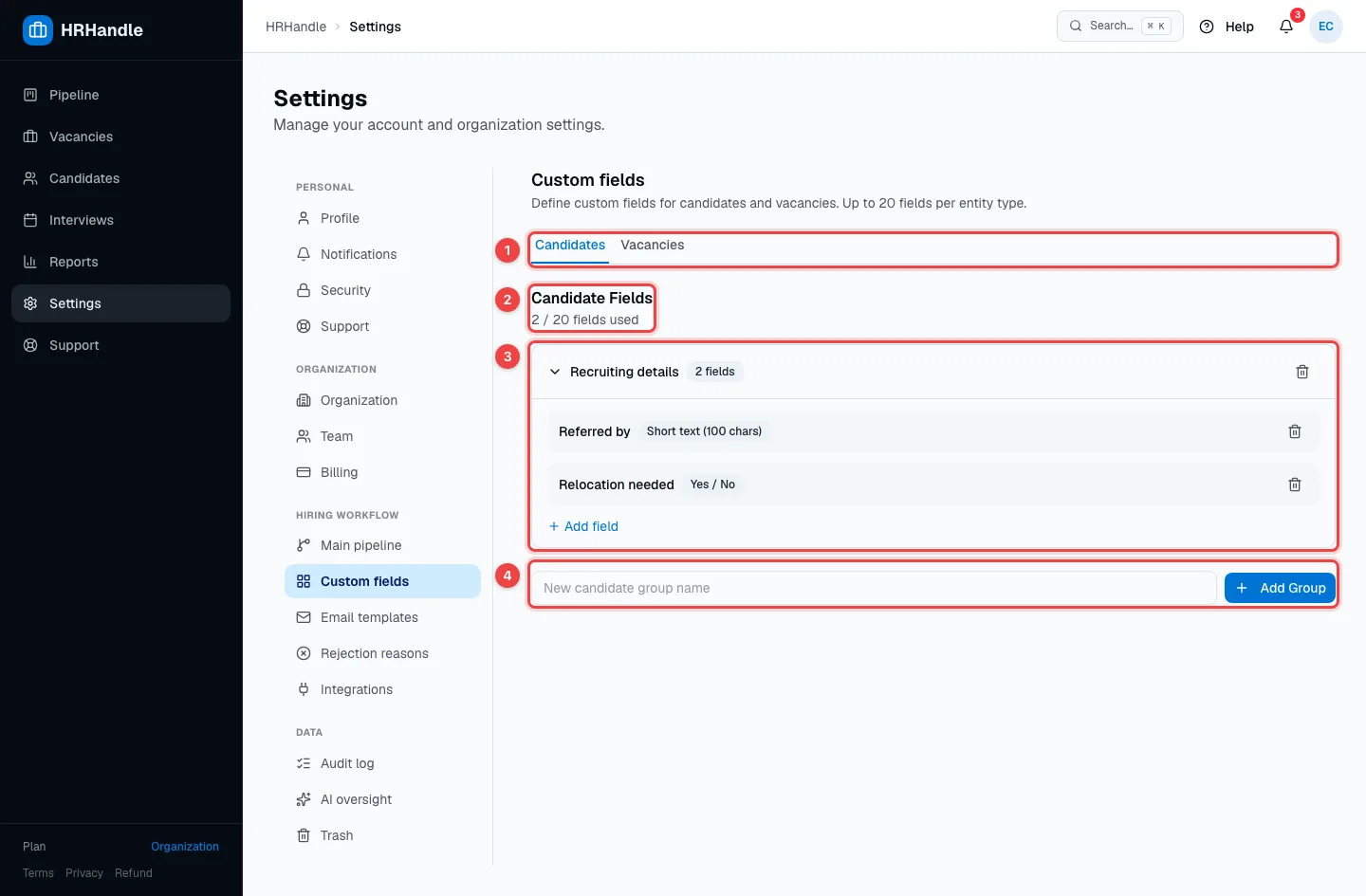
- Candidates / Vacancies — whose fields you're editing.
- Fields used — how many of the 20 fields you've created.
- A group — click its name to open it. It lists the fields with their type; the bin deletes a field or the whole group. Deleting a field also deletes everything saved in it.
- Add Group — type a name, for example "Recruiting details", and click Add Group.
Add a field
Open a group and click Add field.
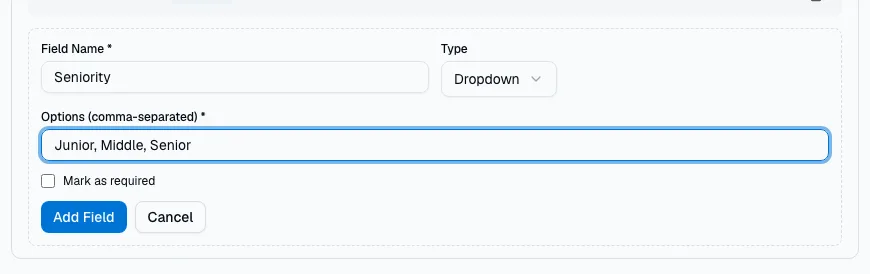
Type the Field Name and choose its Type:
| Type | Holds |
|---|---|
| Short text (100 chars) | A name, a code, a short note. |
| Long text (5000 chars) | A longer description. |
| Number | A figure, such as years or a budget. |
| Date | A date picked from a calendar. |
| Dropdown | One of the Options you list, separated by commas. |
| Yes / No | A tick box. |
Tick Mark as required if the field must always be filled in, then click Add Field.
Where custom fields appear
- Vacancy fields — in step 2 of the vacancy wizard and on the vacancy's Job description tab (see Create a vacancy).
- Candidate fields — when you add a candidate and under Details on the candidate profile (see The candidate profile).
- In lists — add any custom field as a column in the candidate or vacancy list (see Search and filters).