Guide
Assessments and scorecards
Rate candidates against the vacancy's criteria, on your own or with colleagues.
An assessment is one interviewer's verdict on a candidate: notes on the interview questions, a rating from 1 to 5 for each skill on the vacancy's scorecard, and an overall recommendation. Every interviewer fills in their own, and the candidate's profile keeps them all.
The scorecard and the interview questions belong to the vacancy. You set them when you create it, and can change them any time in the vacancy's Scorecard & interview tab — see Create a vacancy and The vacancy page.
Open the assessment
When a candidate is at the interview stage, the stage card on their profile has the scorecard button.
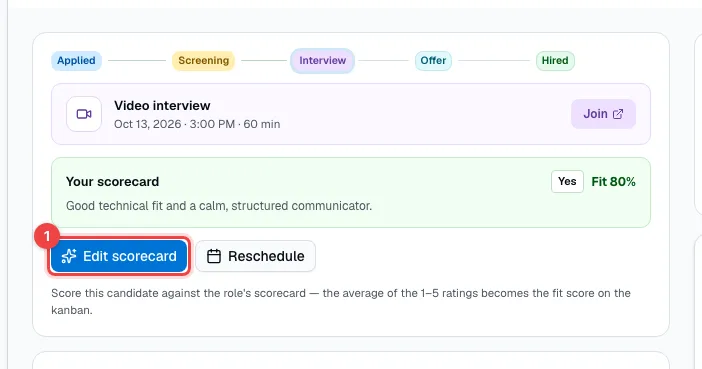
- Add full scorecard — opens the assessment. After you've submitted it, the button reads Edit scorecard, and Your scorecard above it shows your recommendation, fit and reason.
Fill in the assessment
The assessment opens on the right, in three parts.
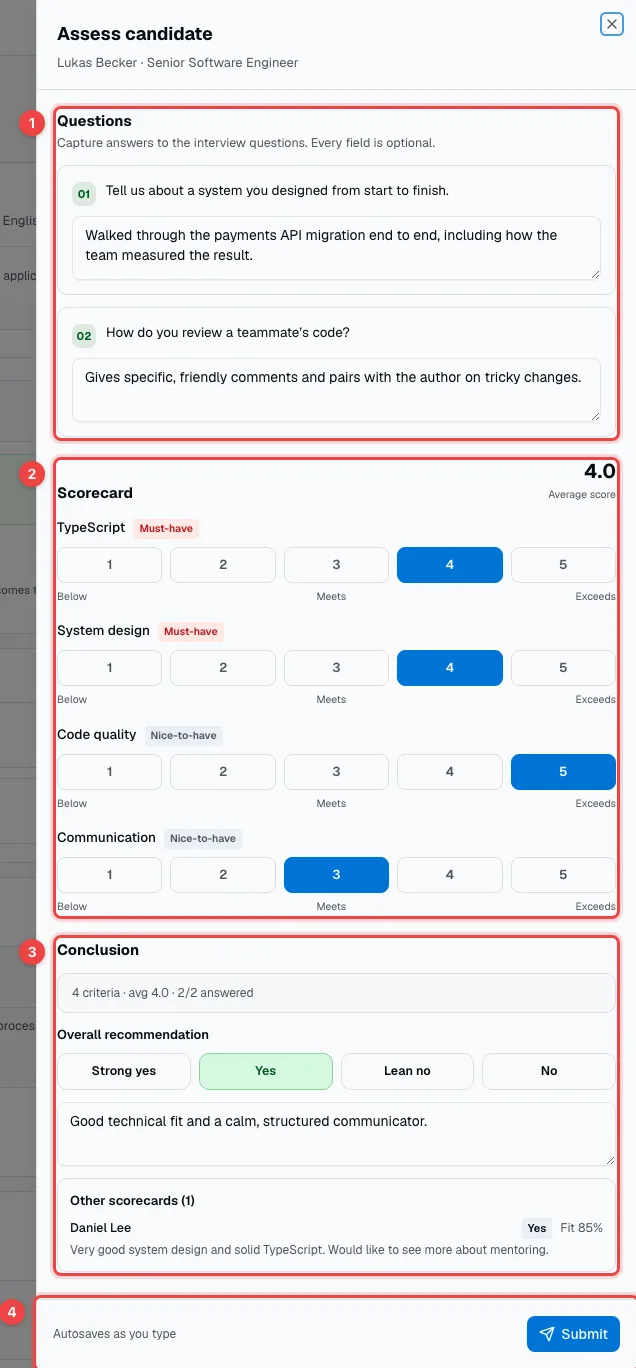
- Questions — the vacancy's interview questions, with room to write down the candidate's answers.
- Scorecard — rate each skill from 1 (Below) through 3 (Meets) to 5 (Exceeds). Must-have skills are marked. The Average score updates as you go; click a rating again to clear it.
- Conclusion — pick an Overall recommendation (Strong yes, Yes, Lean no or No) and add a one-line reason.
- Submit — finishes your assessment.
Every field is optional, and everything you type is saved automatically, so you can close the assessment and come back to it later.
To keep the team from influencing each other, the other interviewers' assessments stay hidden here until you submit yours. After that, they appear under Other scorecards with their recommendation and fit.
The team's assessments
Every submitted assessment stays on the candidate's profile under Assessments — also after the candidate is hired or rejected. The owner and admins see all of them. Other teammates see a colleague's assessment once they've submitted their own for the same vacancy.
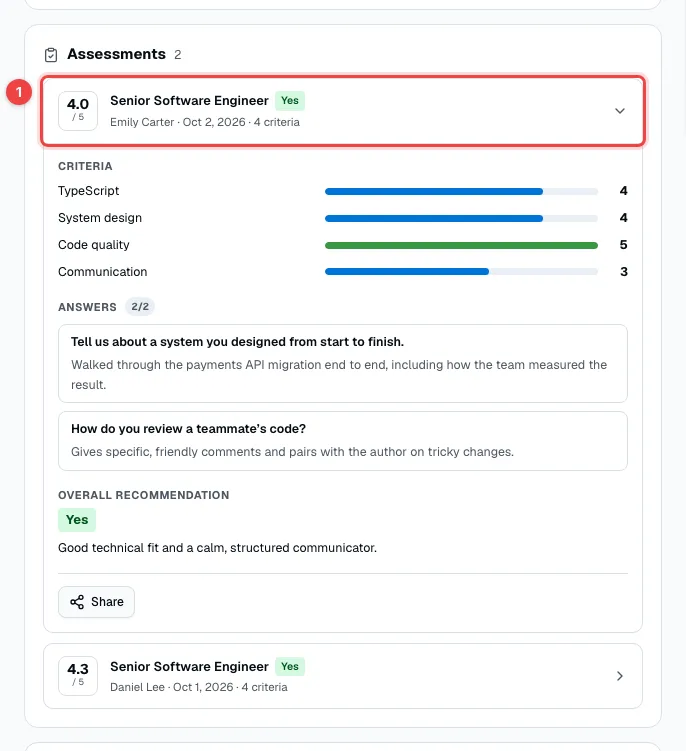
- An assessment — the average rating out of 5, the vacancy, the recommendation, who assessed and when. Click it to see each rating, the answers and the reason.
Share an assessment
Owners and admins can share one assessment with someone who isn't in HRHandle — for example a hiring manager at a partner company. Open the assessment under Assessments and click Share at the bottom.
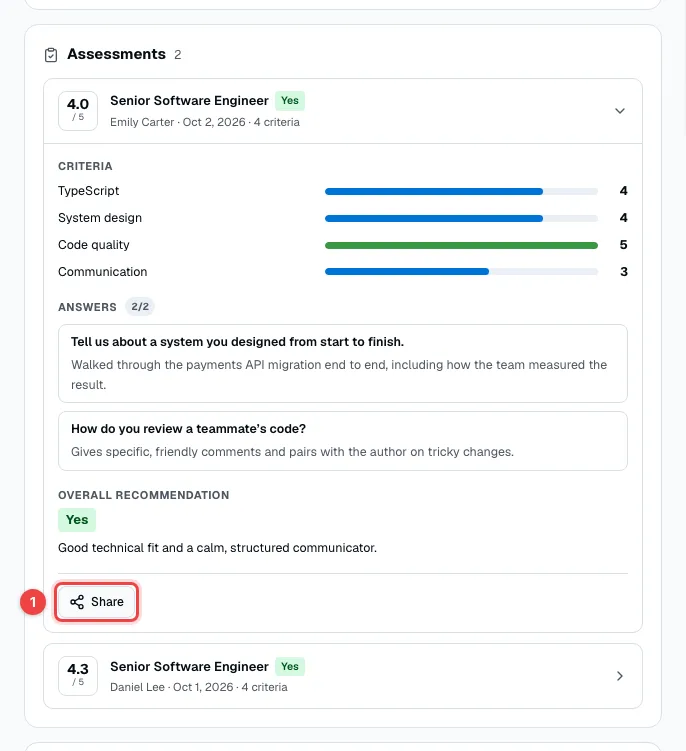
- Share — opens the sharing window for this assessment.
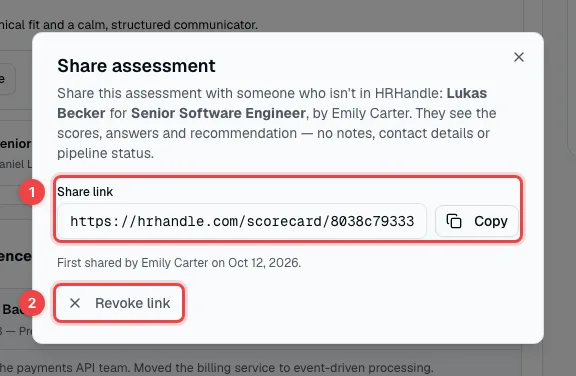
- Share link — click Generate link the first time, then Copy and send the link. Anyone with the link can open the assessment, without an account.
- Revoke link — the link stops working at once. You can generate a new one later.
Once shared, the assessment is marked Shared in the list.
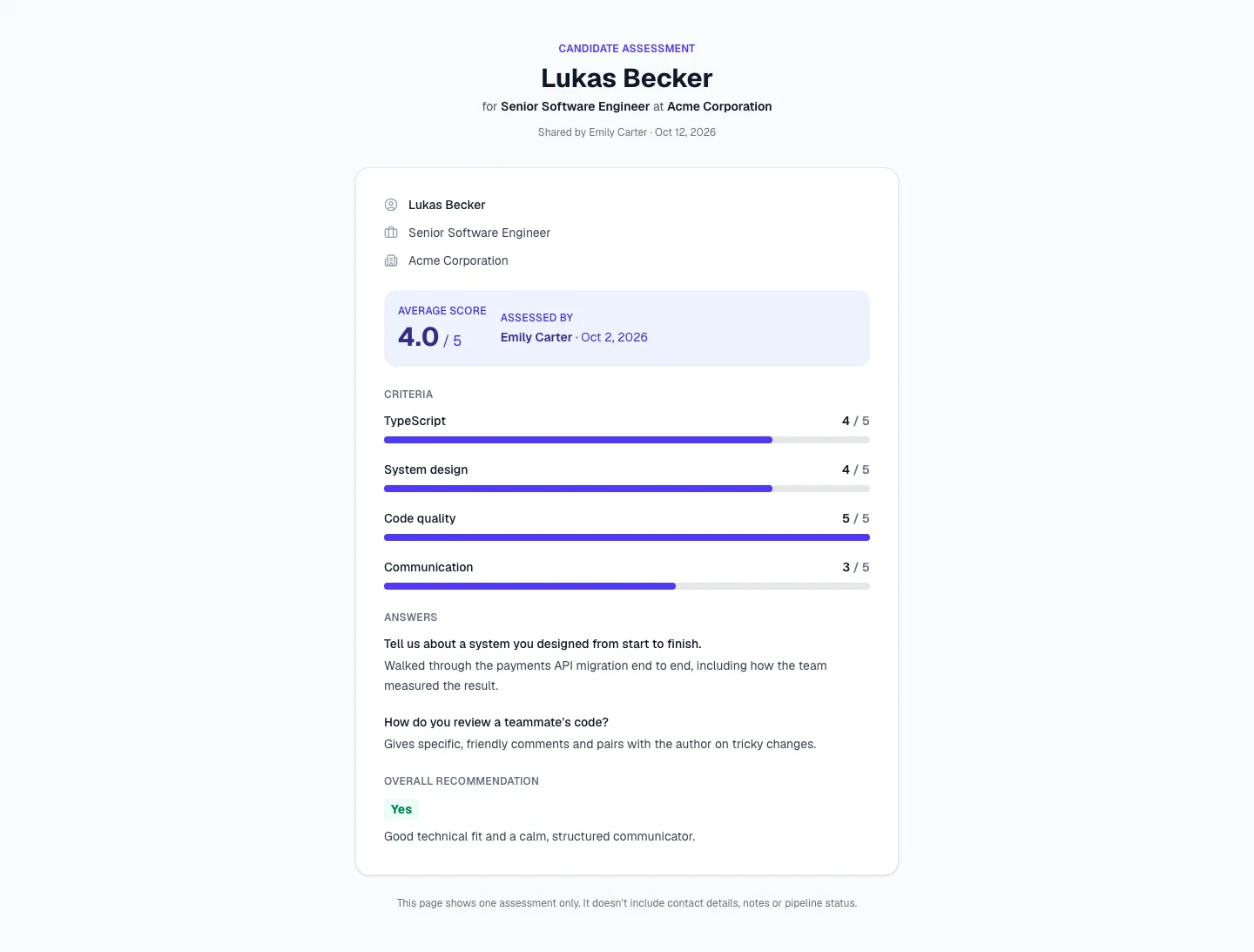
The page shows the candidate's name, the vacancy and your company, the average score, who assessed and when, each rating, the answers and the recommendation with its reason. It doesn't show contact details, notes or the candidate's stage.
How the fit score is calculated
Once every skill is rated, the assessment gets a fit percentage: the sum of the ratings divided by the highest possible sum. Ratings of 4, 4, 5 and 3, for example, give 16 out of 20 — 80%. The card on the pipeline shows the average of the submitted assessments on a 10-point scale: assessments of 80% and 85% show as Fit 8.3.