Guide
Share a vacancy
Share a vacancy through its apply link, your public jobs page and LinkedIn.
Once a vacancy is open, share it where candidates are looking. Every open vacancy can have an apply link, and all your public vacancies appear together on your organization's jobs page. Candidates don't need an account to apply.
The apply link
Open the vacancy and go to the Apply form tab.
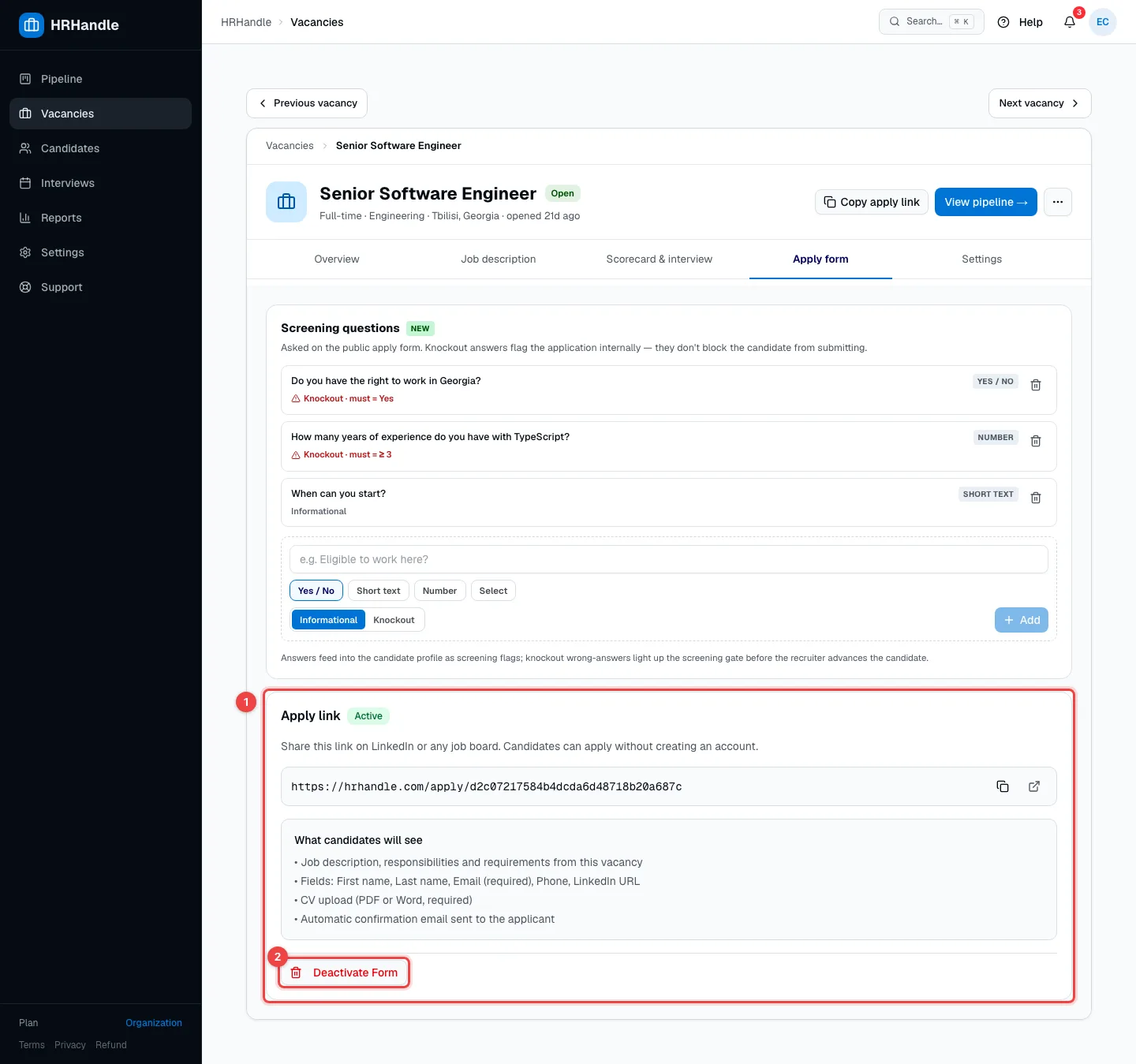
The Screening questions at the top are the questions applicants answer on the form. You can add, change or remove them here — see Create a vacancy.
- Apply link — the vacancy's public link. The buttons next to it copy the link or open the form. What candidates will see lists what's on the form: the job description; first name, last name, email, phone and LinkedIn fields; a CV upload (PDF or Word, required); and an automatic confirmation email after they apply.
- Deactivate Form — the link stops working immediately. Candidates who have already applied stay.
If a vacancy has no link yet — for example because Show on public jobs page was off when you published it — click Activate Application Form on this tab.
The same link is behind Copy apply link in the vacancy's header and the Share box on the Overview tab.
Where to share it
Paste the link wherever your candidates will see it:
- a LinkedIn post or a LinkedIn job listing (see below);
- job boards;
- your company website and social media;
- an email or a message to someone you'd like to apply.
Applications through the link arrive in the vacancy's first stage, Applied, marked as coming from the public form, and HRHandle notifies you. See What candidates see for the candidate's side.
Post it on LinkedIn Jobs
Once your company's LinkedIn page is connected (see Integrations), the Share box on the vacancy's Overview tab has a Post to LinkedIn Jobs button.
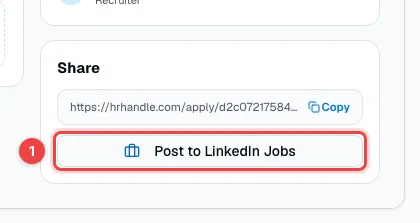
- Post to LinkedIn Jobs — opens the vacancy's title and description, ready to copy into LinkedIn.
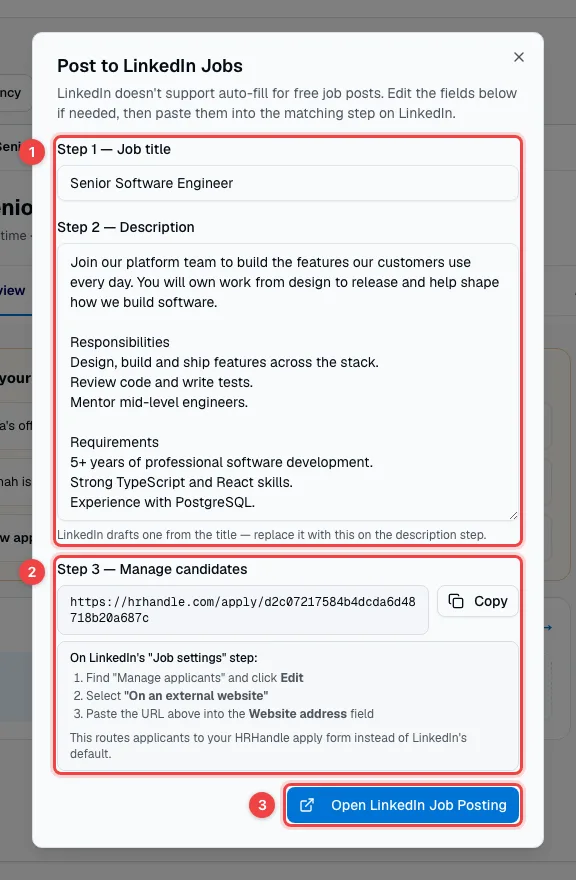
LinkedIn doesn't let other apps fill in a free job post, so you paste each part into LinkedIn's form yourself:
- Step 1 — Job title and Step 2 — Description — change them here if you like, then paste them into the matching steps on LinkedIn. The description already includes the responsibilities and requirements.
- Step 3 — Manage candidates — copy the apply link. On LinkedIn's job settings step, find "Manage applicants", click Edit, choose "On an external website" and paste the link. Applicants then come to your HRHandle apply form instead of LinkedIn's.
- Open LinkedIn Job Posting — opens LinkedIn's job form for your company page.
Your public jobs page
Your organization has a public page that lists all your open vacancies. Its address is at the top of the Vacancies list.
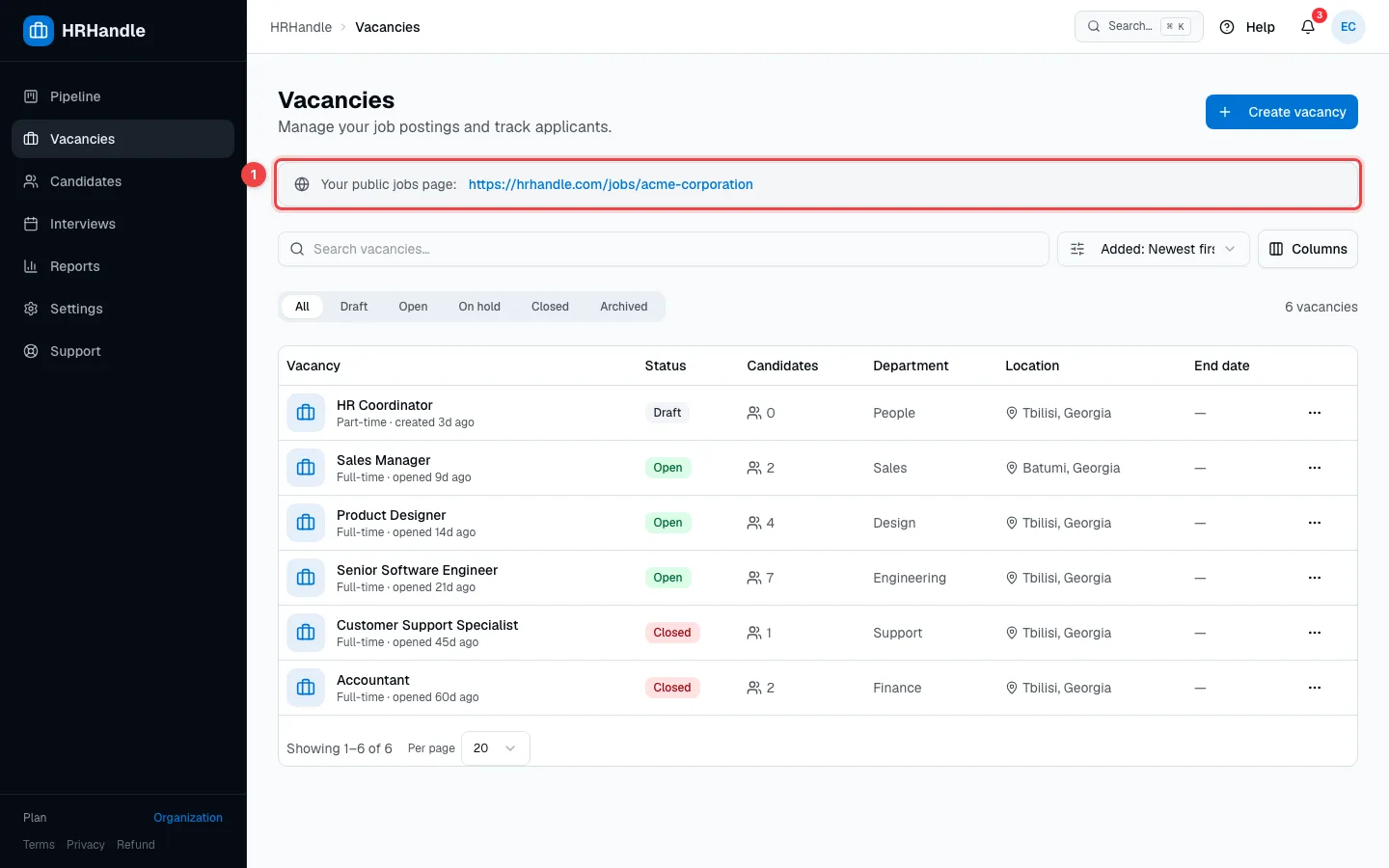
- Your public jobs page — click the link to open it, or copy it to share all your vacancies at once.
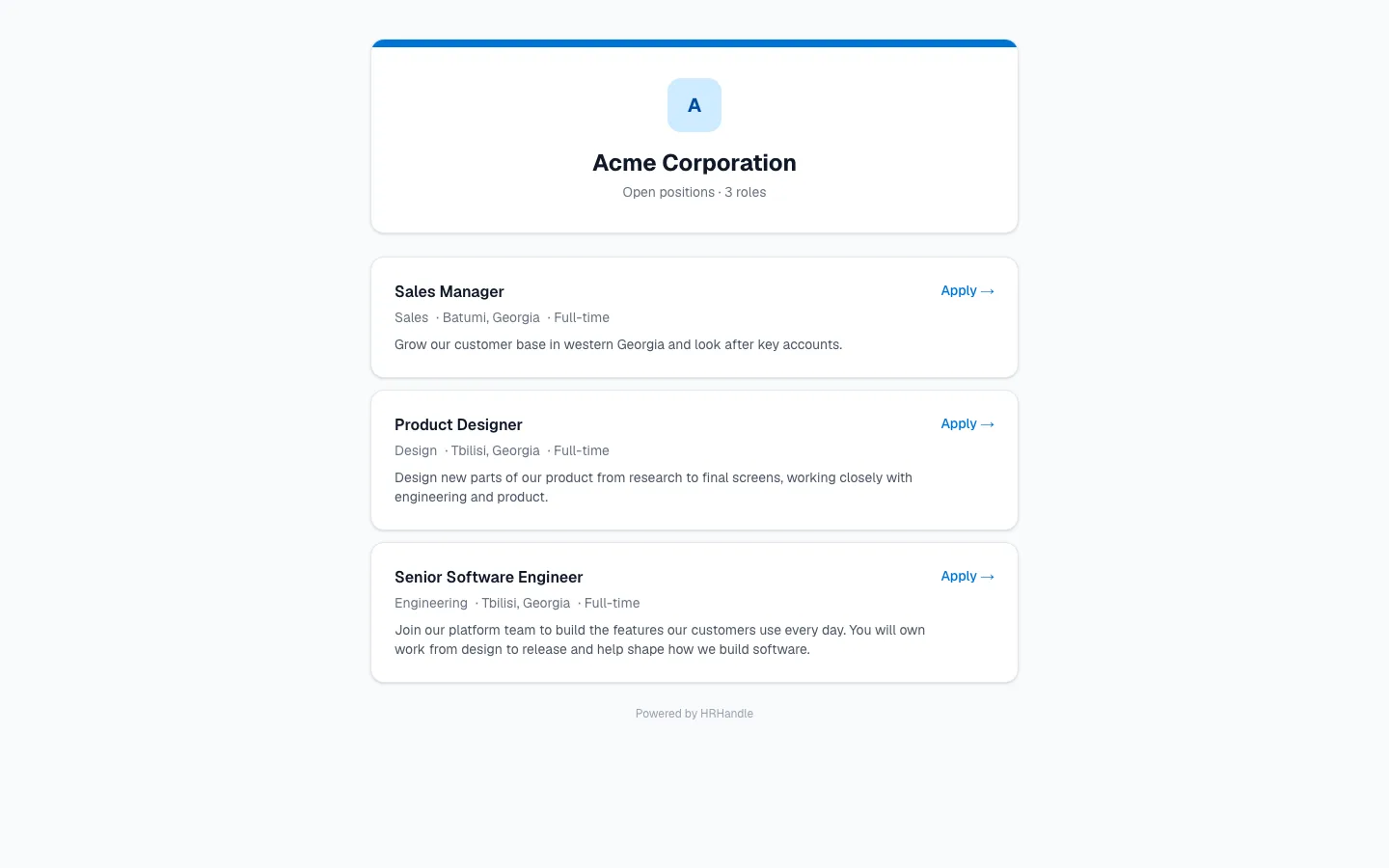
The page shows your logo and company name, then every vacancy that is Open and has Public visibility, with its department, location, employment type and the start of its description. Apply opens the vacancy's apply page.
To list a vacancy here, turn on Show on public jobs page when you create or edit it. To keep a vacancy off the jobs page, turn that switch off: its apply link still works for the people you send it to. Change the page's address in Organization settings.
What candidates see
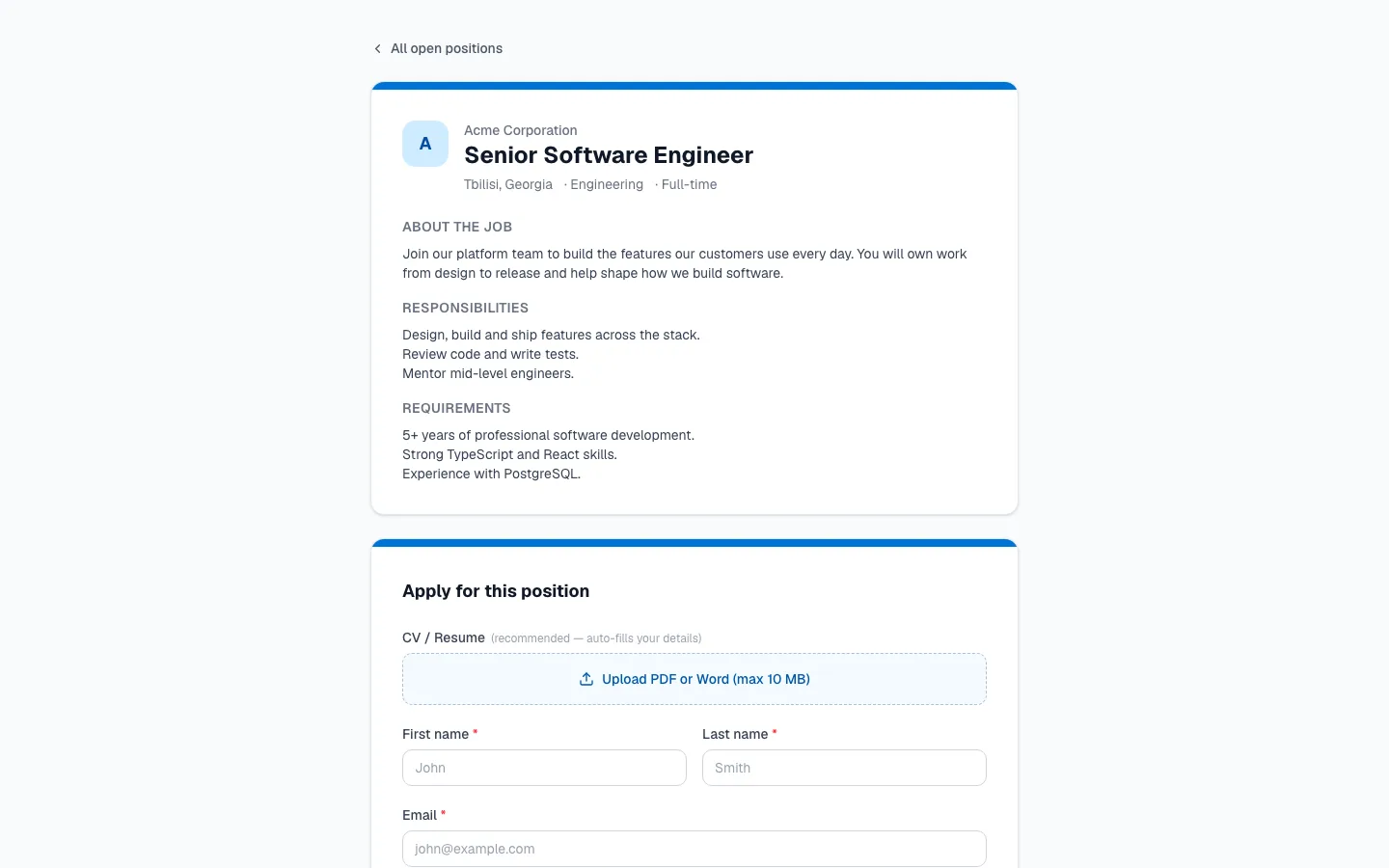
The apply page shows your logo, the vacancy's title and details, the job description and the application form — all in your organization's language. More in What candidates see.