Guide
Find your way around
The sidebar, the Pipeline home screen, search, notifications and the interface language.
Every HRHandle screen has the same frame: the sidebar on the left and the header along the top. This guide shows what each part does, so you always know where to find things.
The main screen
When you sign in, you land on the Pipeline: every candidate across all your open vacancies, arranged by hiring stage.
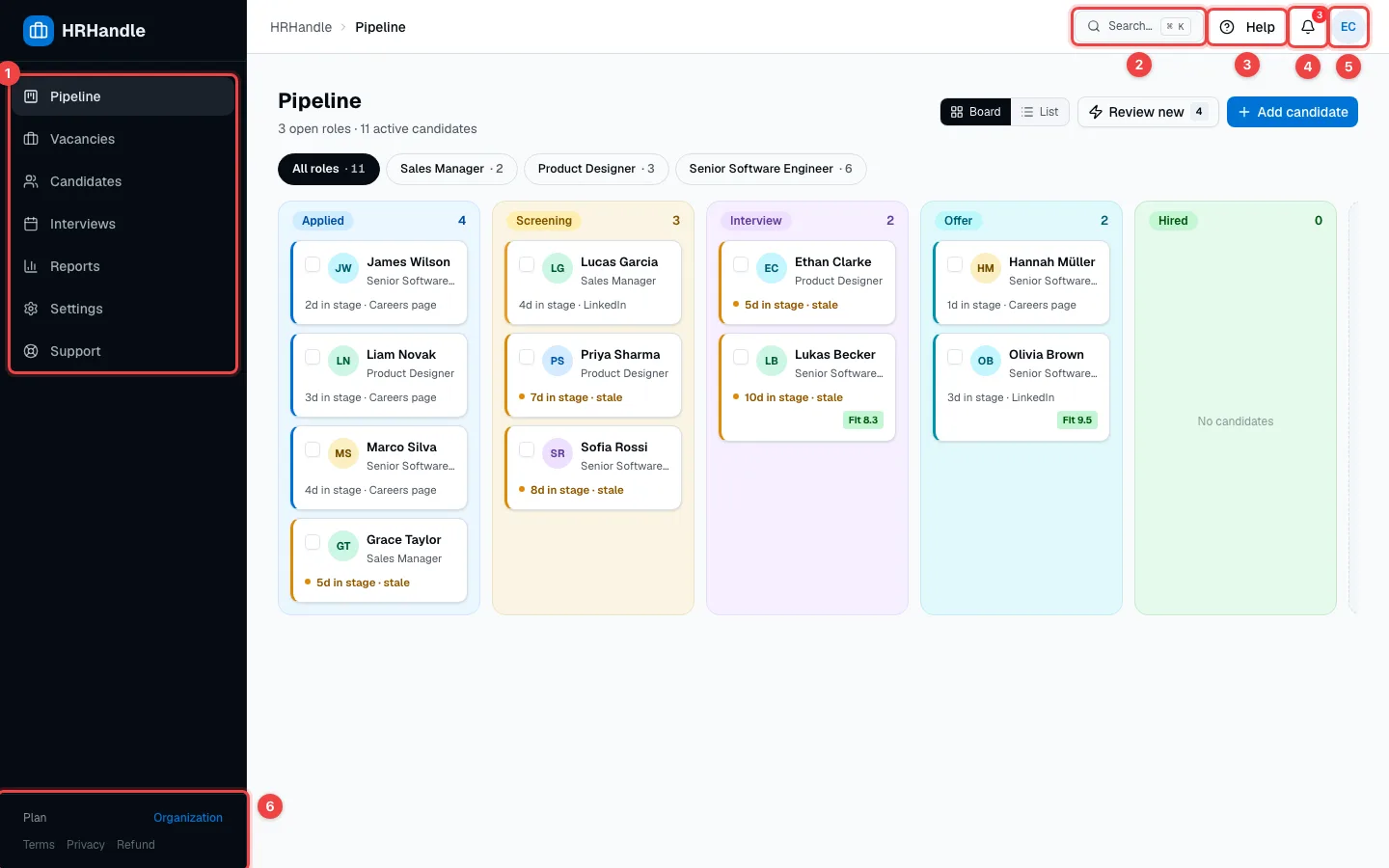
- The sidebar — the main sections of HRHandle (see the table below).
- Search… — finds candidates, vacancies and notes from anywhere. Shortcut: Ctrl+K (⌘K on a Mac) or the / key. See Search and filters.
- Help — opens this guide in a new tab.
- Notifications — a red number shows how many are unread.
- Your account — your initials. Opens the account menu.
- Plan — the plan your organization is on. During the trial, a pill in the header also shows how many days are left.
| Section | What it's for |
|---|---|
| Pipeline | Every candidate in every open vacancy, by stage. See The pipeline. |
| Vacancies | Your job openings: create, edit and share them. See Create a vacancy. |
| Candidates | Everyone who ever applied or was added — your talent pool. See The candidate profile. |
| Interviews | Upcoming and past interviews. See Schedule interviews. |
| Reports | Pipeline conversion, candidate sources and time to hire. See Reports. |
| Settings | Your profile and your organization's settings. Which ones you see depends on your role. |
| Support | Send a message to the HRHandle team. |
On a phone or a small screen, the sidebar folds into a menu button in the top-left corner.
Notifications
Click the bell to see what happened while you were away.
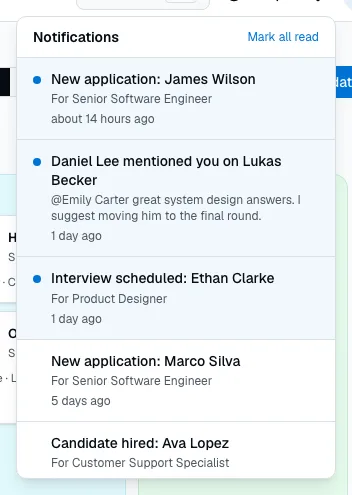
HRHandle notifies you about new applications, @mentions in notes, scheduled interviews, offer answers, hires and more. Click a notification to open it, or click Mark all read. You choose which ones you get — and whether they also come by email — in Settings → Notifications. See Your profile and security.
Your account menu
Click your initials in the top-right corner.
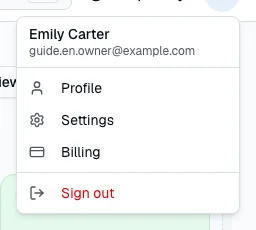
- Profile — your name, photo and interface language.
- Settings — all the settings you have access to.
- Billing — your organization's plan and payments.
- Sign out — signs you out on this device.
Change the interface language
Each person chooses their own interface language — English, Georgian or Russian — in Settings → Profile → Language. It only changes what you see. The language candidates see is set for the whole organization in Organization settings.