Guide
Offers
Create and send job offers, and see when a candidate accepts or declines.
When you've chosen your candidate, send them the offer from HRHandle. The candidate gets a private link where they can read it and accept or decline, and you see their answer straight away. Owners and admins create and send offers; other teammates see the offer and its status on the candidate's profile.
Create an offer
Move the candidate to the Offer stage. Their stage card then turns into the offer form.
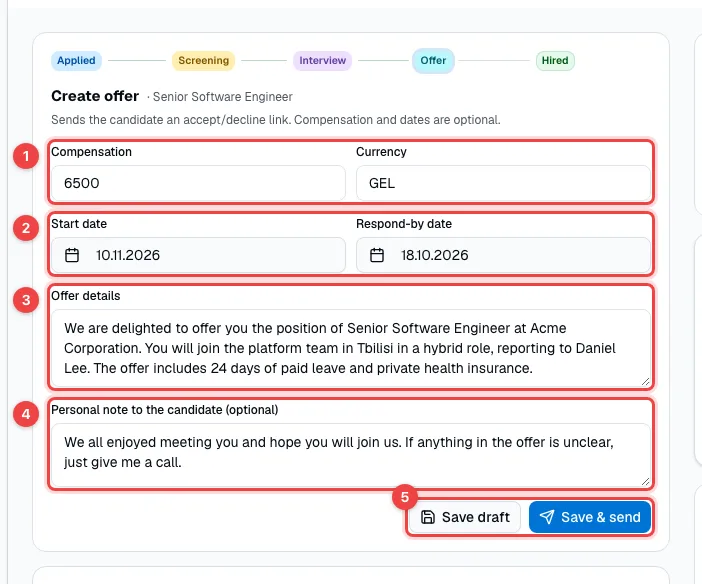
- Compensation and Currency — for example 6500 and GEL.
- Start date and Respond-by date — when the job starts and how long the offer stays open. After the respond-by date the offer expires and can no longer be accepted.
- Offer details — the offer itself, in your own words: the role, team, salary, benefits.
- Personal note to the candidate (optional) — a few words of your own. The offer page shows it as A note from the recruiter.
- Save draft keeps the offer to finish later. Save & send emails the candidate a link to the offer.
Follow the offer
Once the offer is sent, the stage card shows it with its status.
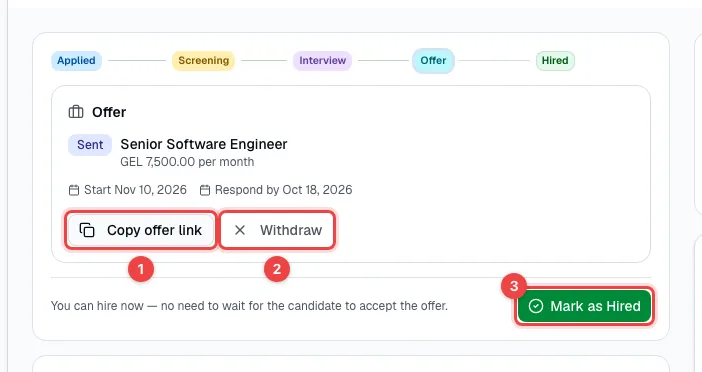
- Copy offer link — copy the link to send it another way, for example in a chat.
- Withdraw — take the offer back. The candidate's page then says it was withdrawn, and you can create a new offer.
- Mark as Hired — hire the candidate. You don't have to wait for them to accept.
| Status | Means |
|---|---|
| Draft | Saved, not sent yet. |
| Sent | Waiting for the candidate's answer. |
| Accepted | The candidate accepted. |
| Declined | The candidate declined, optionally with a reason. |
| Expired | The respond-by date passed without an answer. |
| Withdrawn | You took the offer back. |
When the candidate accepts or declines, the owner and admins get a notification. If they decline with a reason, the reason is in the notification and under the declined offer in Previous offers on the stage card. An accepted offer doesn't hire the candidate by itself: the stage card shows Offer accepted and a Mark as Hired button, so you finish the hire when you're ready.
What the candidate sees
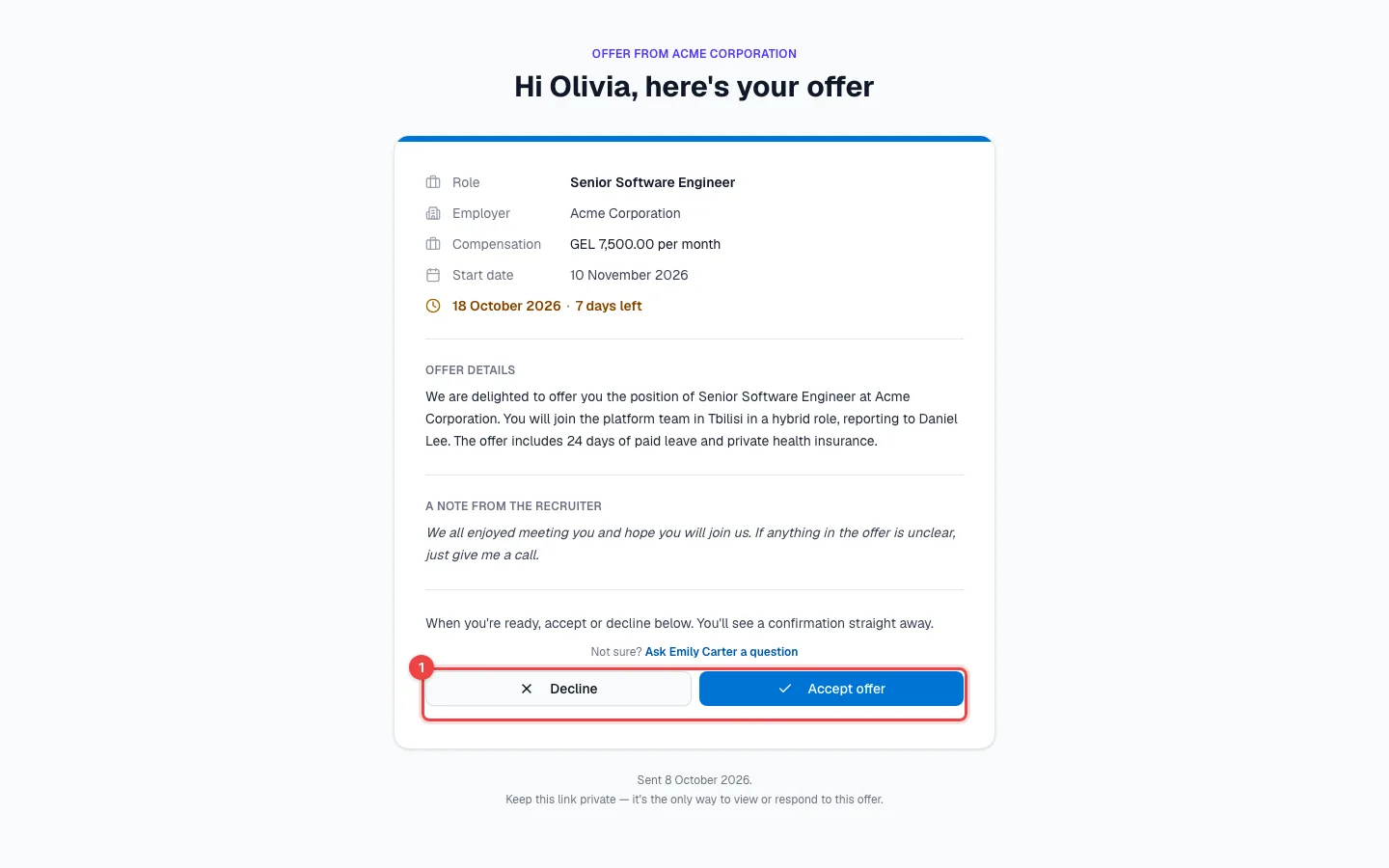
The page shows everything from the offer form, with your personal note under A note from the recruiter.
- Decline / Accept offer — the candidate answers right on the page. They're asked to confirm, and when declining they can add a short reason.
Under the offer, Not sure? lets the candidate email the person who sent it. More about the pages candidates see in What candidates see.