Guide
Search and filters
Find any candidate, vacancy or note quickly, and narrow down long lists.
Two tools help you find what you need: the global search, which looks everywhere at once, and the search and filters on the candidate and vacancy lists.
Search everything
Click Search… in the header, or press Ctrl+K (⌘K on a Mac) or the / key from anywhere in HRHandle.
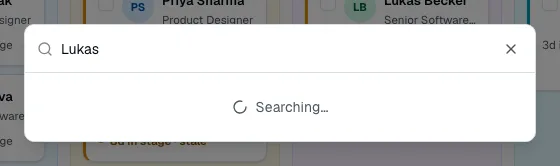
Type a name, an email, a vacancy title or a word from a note. Results are grouped into Candidates, Vacancies and Notes; click one, or use the arrow keys and Enter, to open it. Press Esc to close the search.
Search and filter the candidate list
From the sidebar, click Candidates.
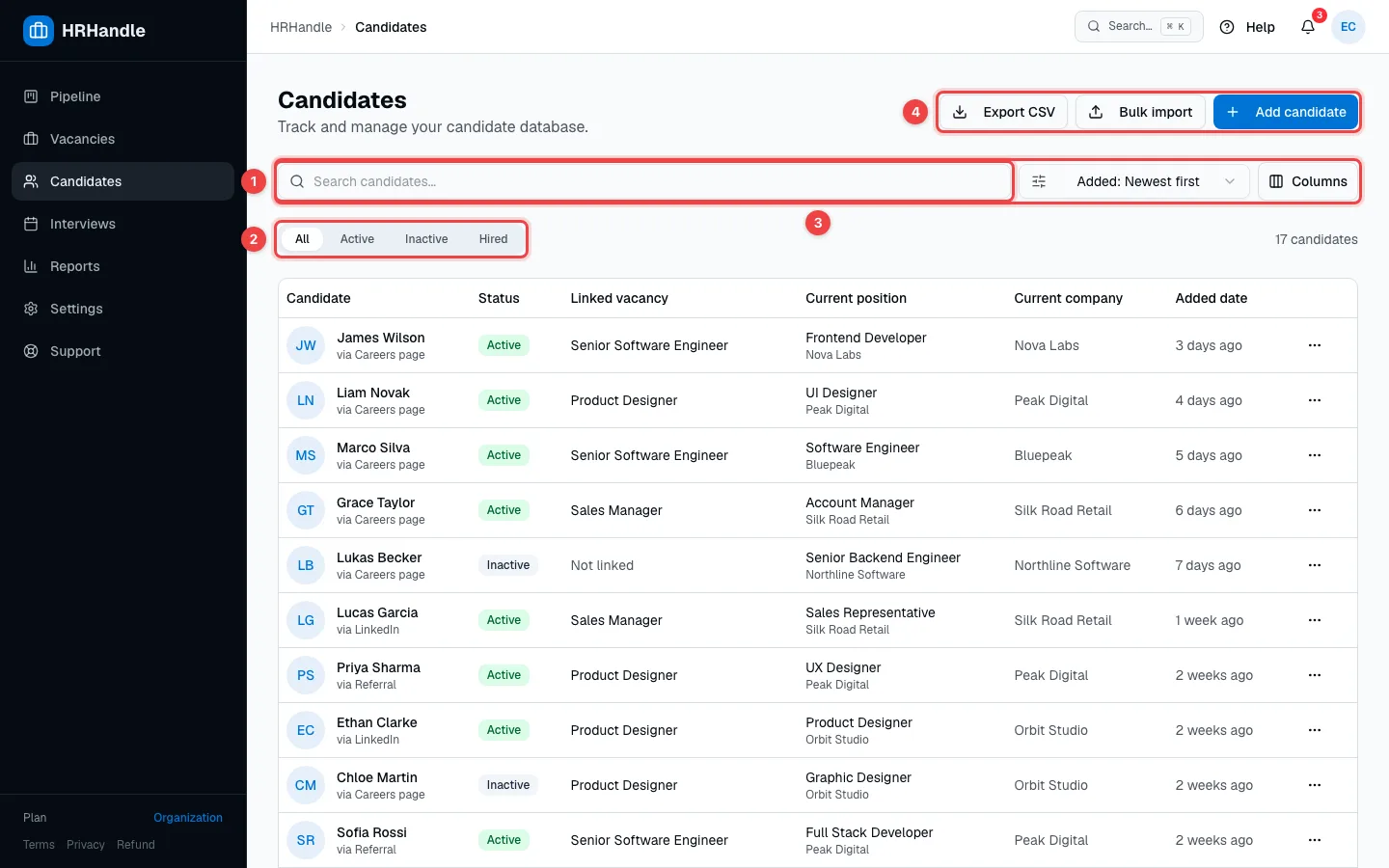
- Search candidates… — matches names and emails.
- Status tabs — show All candidates, or only those who are Active, Inactive or Hired.
- Sort and Columns — sort the list (for example newest first), and choose which columns to show.
- Export CSV downloads all your candidates as a spreadsheet file. Bulk import and Add candidate bring new people in — see Import candidates and Add a candidate.
The Vacancies list has the same tools: a search box, status tabs (All, Draft, Open, On hold, Closed, Archived), sorting and columns.
Choose your columns
Click Columns to decide what the list shows.
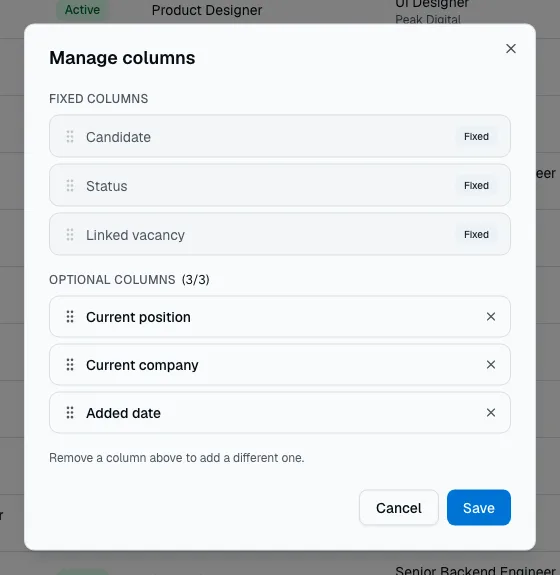
Turn on the columns you need — including your organization's custom fields — turn off the rest, and drag columns to change their order. Each person's choice is saved separately, so changing it doesn't affect your teammates.