Guide
The vacancy page
Applications, job description, scorecard, application form and settings of a vacancy.
Every vacancy has its own page that brings everything about the role together. Open it from Vacancies by clicking the vacancy's title. At the top are the main actions; below them are five tabs. Previous vacancy and Next vacancy move between vacancies without going back to the list.
Overview
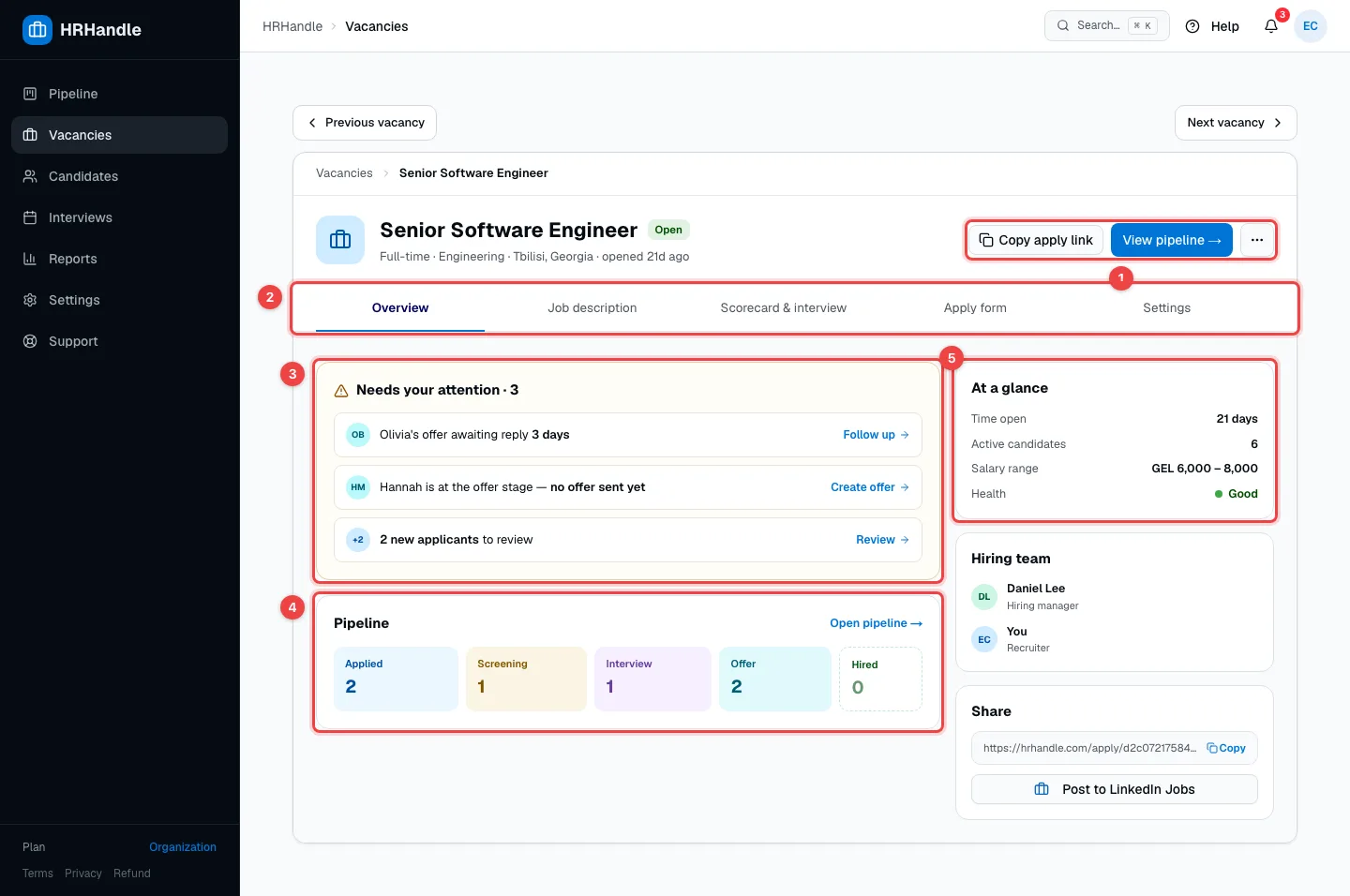
- Header actions — Copy apply link copies the link candidates use to apply. View pipeline → opens this vacancy's board. ⋯ holds more actions (see below).
- The tabs — Overview, Job description, Scorecard & interview, Apply form and Settings.
- Needs your attention — what's waiting for you on this vacancy: a sent offer the candidate hasn't answered yet, a candidate at the Offer stage whose offer isn't created or sent yet, an interview in the next day and a half, and new applicants to review. Each item has a button that takes you there. When nothing is waiting, HRHandle tells you so.
- Pipeline — how many candidates are in each stage. Open pipeline → opens the board.
- At a glance — how long the vacancy has been open, the number of active candidates, the salary range, the end date and its Health.
| Health | Means |
|---|---|
| Good | A candidate moved to another stage in the last 7 days. |
| Watch | Nothing has moved for a week. |
| Stale | Nothing has moved for a week and the vacancy has been open for more than 30 days. |
Below that are the Hiring team — the hiring manager and the recruiter — and Share, with the apply link and a copy button. Once your company's LinkedIn page is connected, Share also has Post to LinkedIn Jobs — see Share a vacancy.
More actions
Click ⋯ in the header.
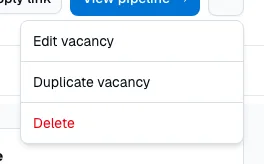
- Edit vacancy — opens the full form, with every field from the Create vacancy wizard.
- Duplicate vacancy — creates a draft copy with the same details, scorecard and questions. Handy for similar roles.
- Delete — moves the vacancy to the Trash, where owners and admins can restore it for 30 days. See Audit log and trash.
Job description
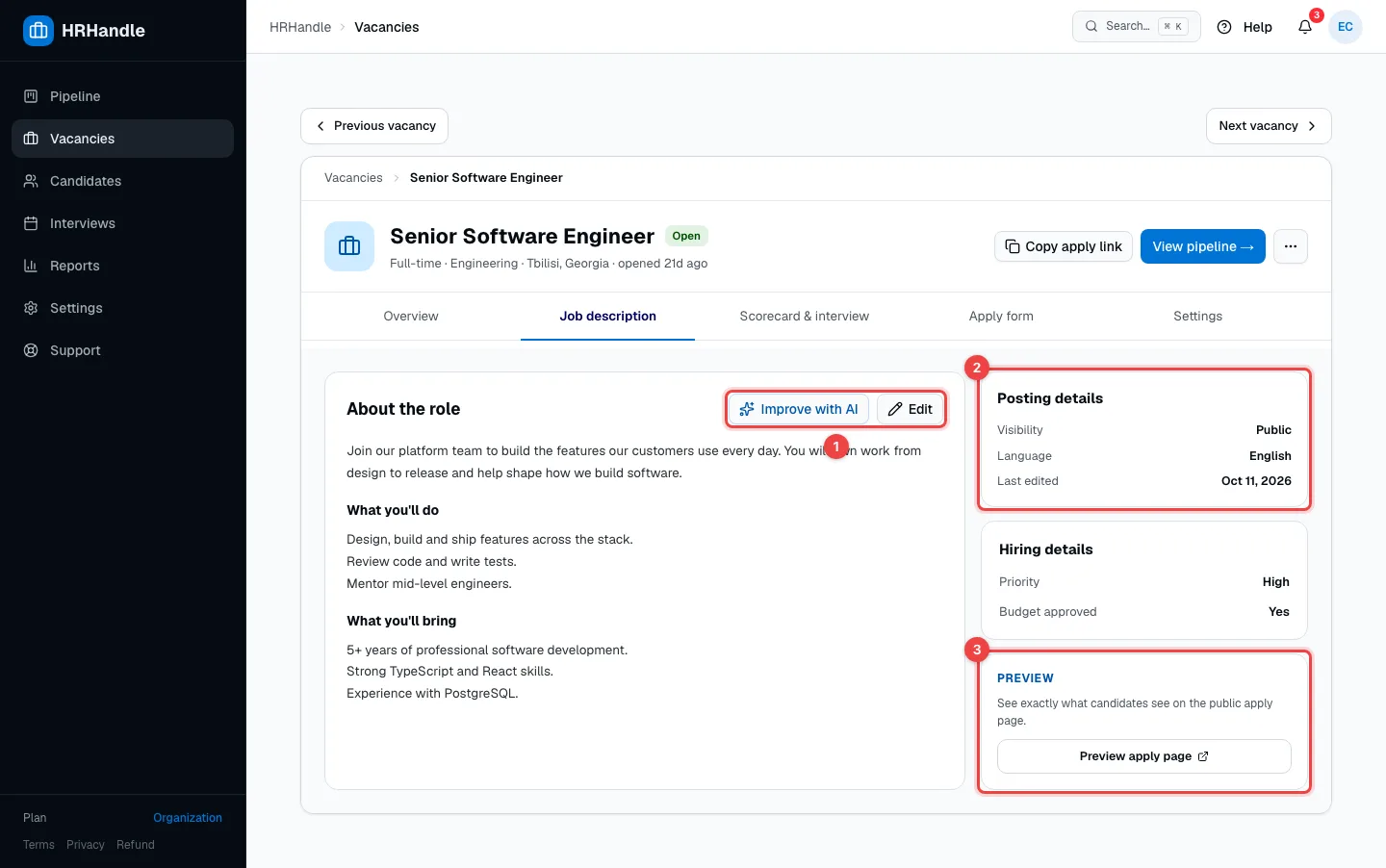
- Improve with AI opens the edit form at the AI writer; Edit opens the form at the top.
- Posting details — Visibility is Public when the vacancy is listed on your jobs page; the content Language and when it was last edited. Your organization's custom fields for vacancies appear below it.
- Preview apply page — opens the public apply page exactly as candidates see it.
Scorecard & interview
This tab is for your team only — candidates never see it.
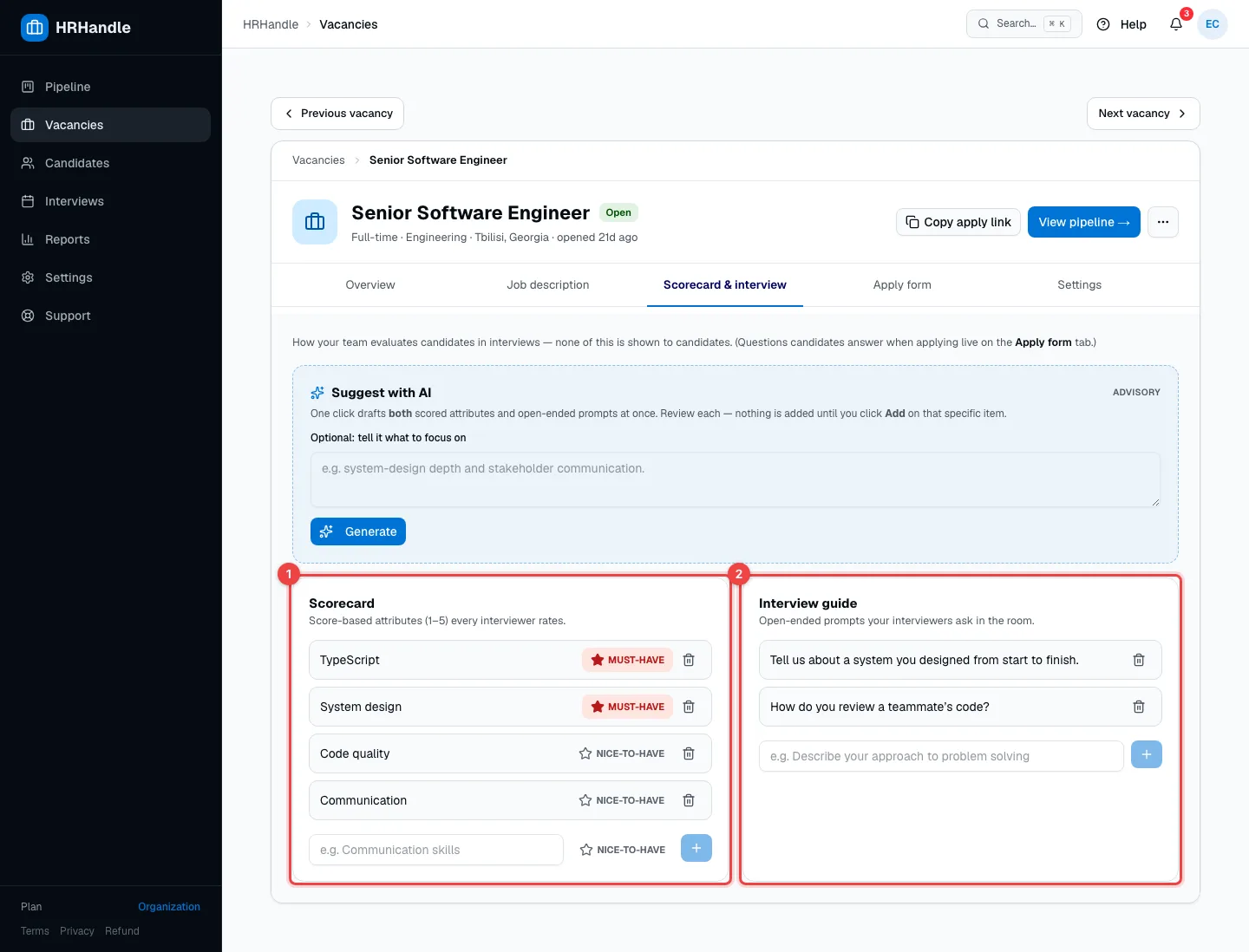
- Scorecard — the attributes every interviewer rates from 1 to 5. Mark each as Must-have or Nice-to-have, and add more in the field at the bottom.
- Interview guide — open-ended questions your interviewers ask in the interview.
Suggest with AI, above them, drafts attributes and questions from the job description; you add the ones you like one by one. More in Assessments and scorecards.
Apply form
The Apply form tab holds the screening questions applicants answer and the vacancy's apply link. See Share a vacancy.
Settings
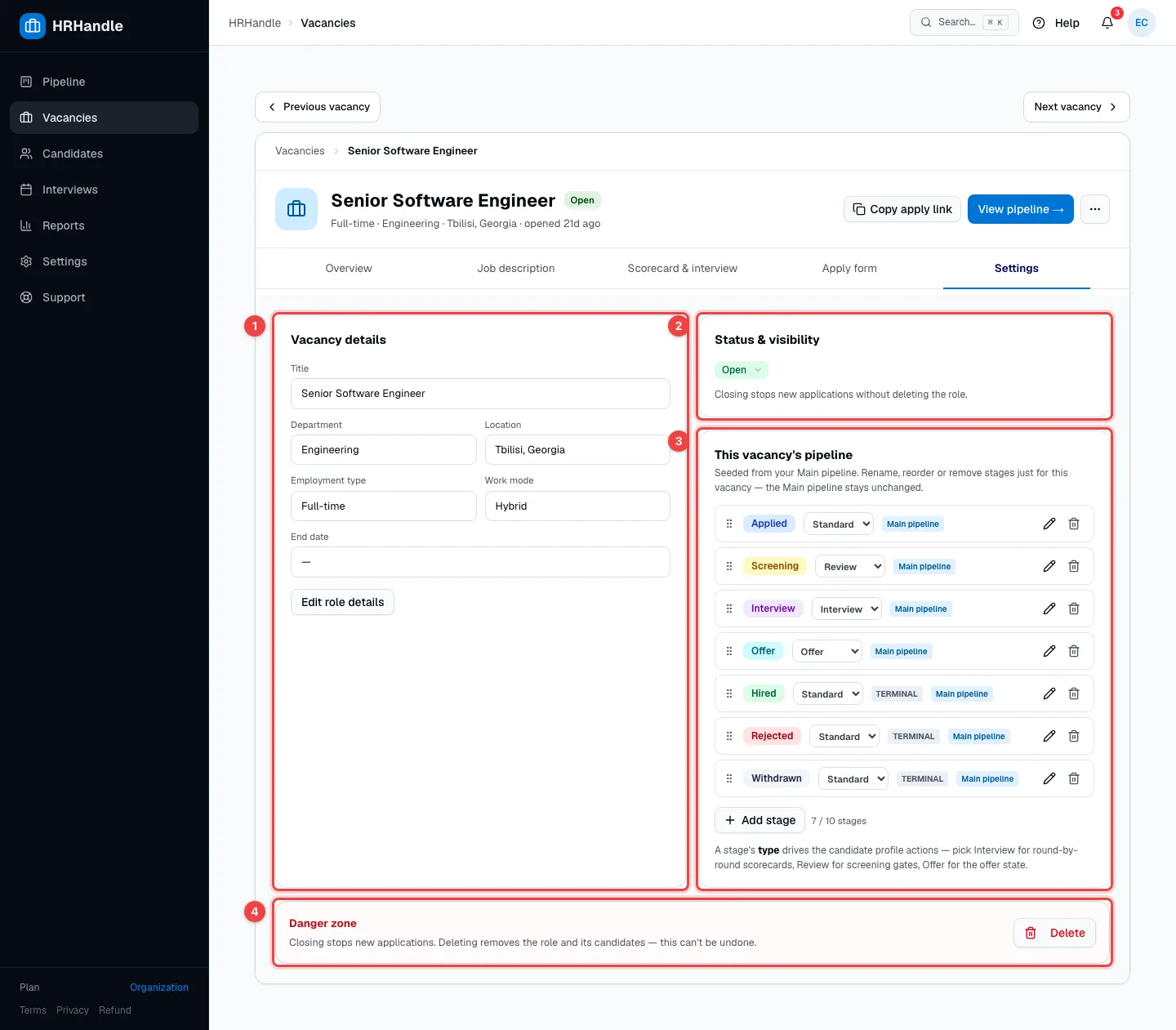
- Vacancy details — title, department, location, employment type, work mode and end date. Edit role details opens the form.
- Status & visibility — change the vacancy's status (see the table below).
- This vacancy's pipeline — the stages candidates move through. They're copied from your Main pipeline when the vacancy is created; here you can rename, reorder, add or remove stages for this vacancy only. See The pipeline.
- Danger zone — Delete moves the vacancy to the Trash.
| Status | What it means |
|---|---|
| Draft | Only your team sees the vacancy. Candidates can't apply. |
| Open | The vacancy accepts applications. It's listed on your jobs page if its visibility is Public. |
| On hold | Paused: the apply link stops accepting applications. Candidates already in the pipeline stay. |
| Closed | Finished: no new applications. The vacancy and its candidates stay. |
| Archived | Hidden from the active vacancy list and kept for your records. |