Guide
Your profile and security
Your name, photo and language, password, two-factor authentication and active sessions.
Your personal settings — Profile, Notifications and Security — only affect your own account. Open them from Settings in the sidebar, or from your initials in the top-right corner.
Your profile
Open Settings → Profile.
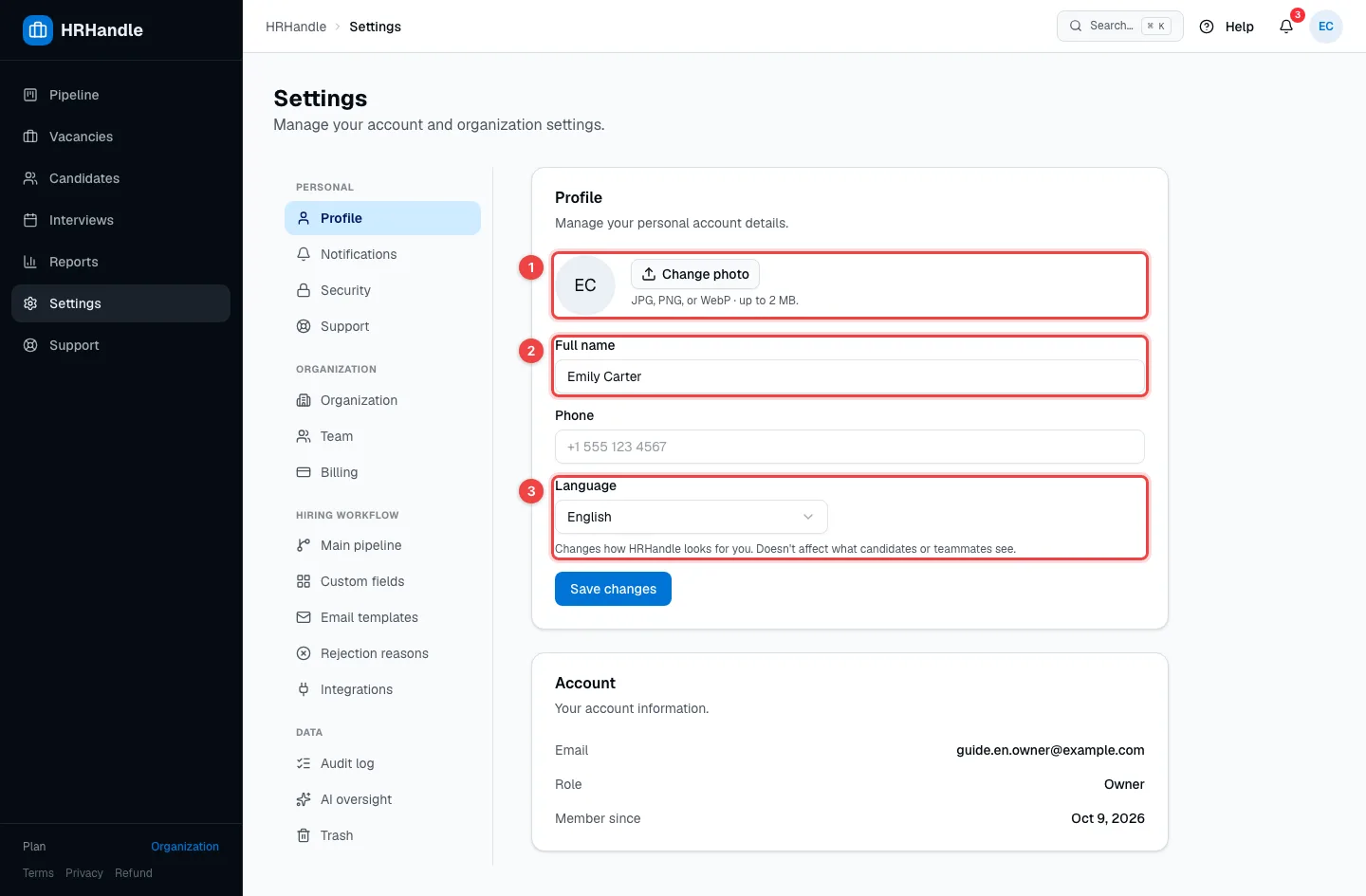
- Change photo — a JPG, PNG or WebP picture of up to 2 MB. Teammates see it next to your name.
- Full name — how your teammates see you, for example in notes, @mentions and the hiring team of a vacancy.
- Language — the language of HRHandle's interface for you: English, Georgian or Russian. It doesn't change what candidates or your teammates see.
Phone is optional. Click Save changes when you're done. The Account box below shows your email, your role and when you joined; only an owner or admin can change a role.
Password, two-factor authentication and sessions
Open Settings → Security.
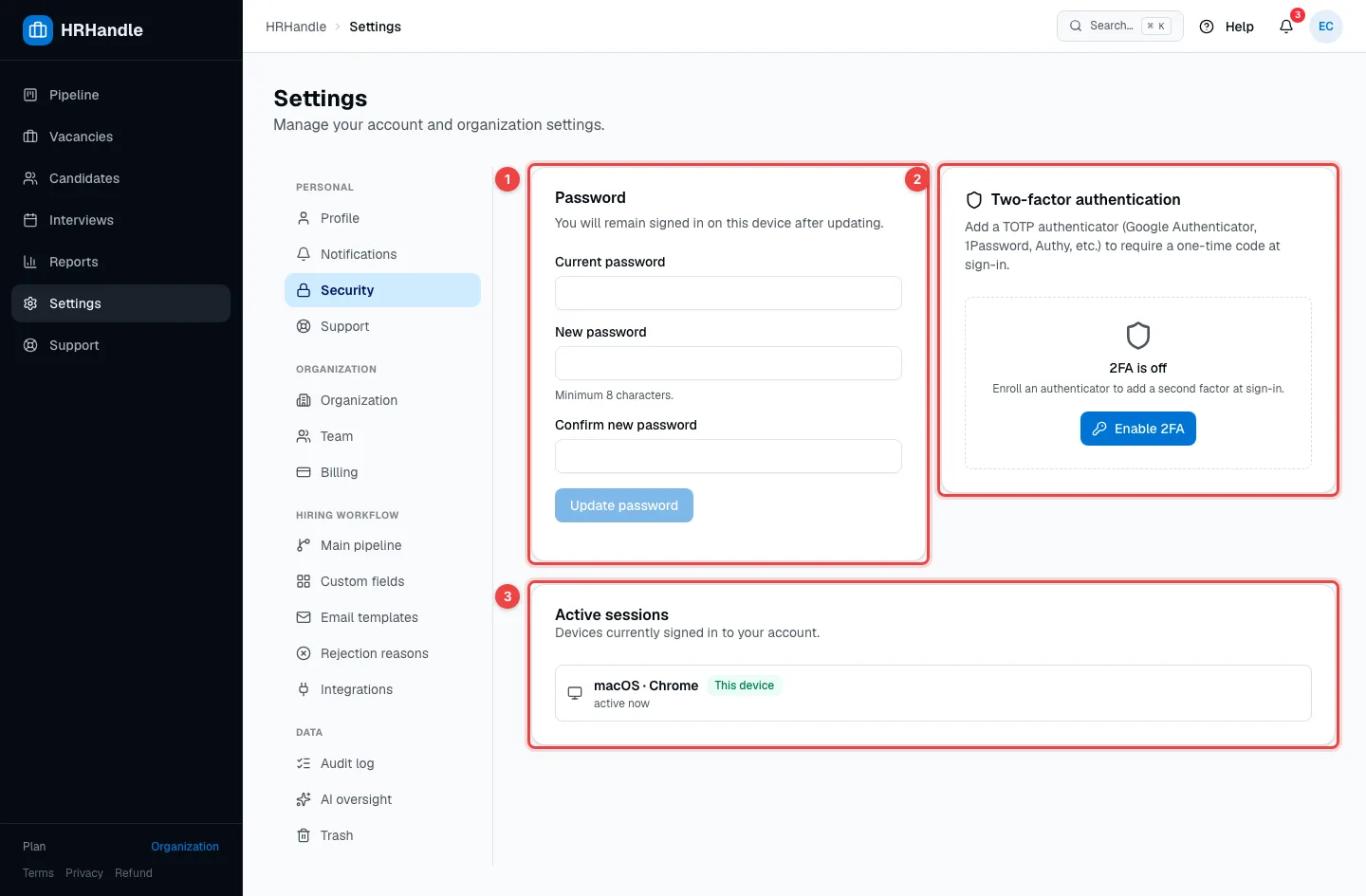
- Password — enter your Current password, a New password of at least 8 characters and Confirm new password, then click Update password. You stay signed in on this device. If you sign in with Google or Microsoft, there's no HRHandle password to change.
- Two-factor authentication — adds a one-time code to every sign-in. Click Enable 2FA, scan the QR code with an authenticator app (Google Authenticator, 1Password, Authy or similar), enter the 6-digit code and click Verify and enable. Then create your Recovery codes and keep them somewhere safe: each one lets you sign in once if you lose your phone.
- Active sessions — every device signed in to your account. Sign a single device out, or use Sign out everywhere if you think someone else has access.
Your organization's owner can make two-factor authentication mandatory — see Organization settings. If you lose both your phone and your recovery codes, ask an owner or admin to reset your 2FA from Settings → Team.
Forgot your password?
On the sign-in page, click Forgot password?, enter your email and open the link HRHandle sends you. If you use two-factor authentication, you'll also be asked for a code before you set the new password.
Notification settings
Open Settings → Notifications to choose how HRHandle tells you about each event.
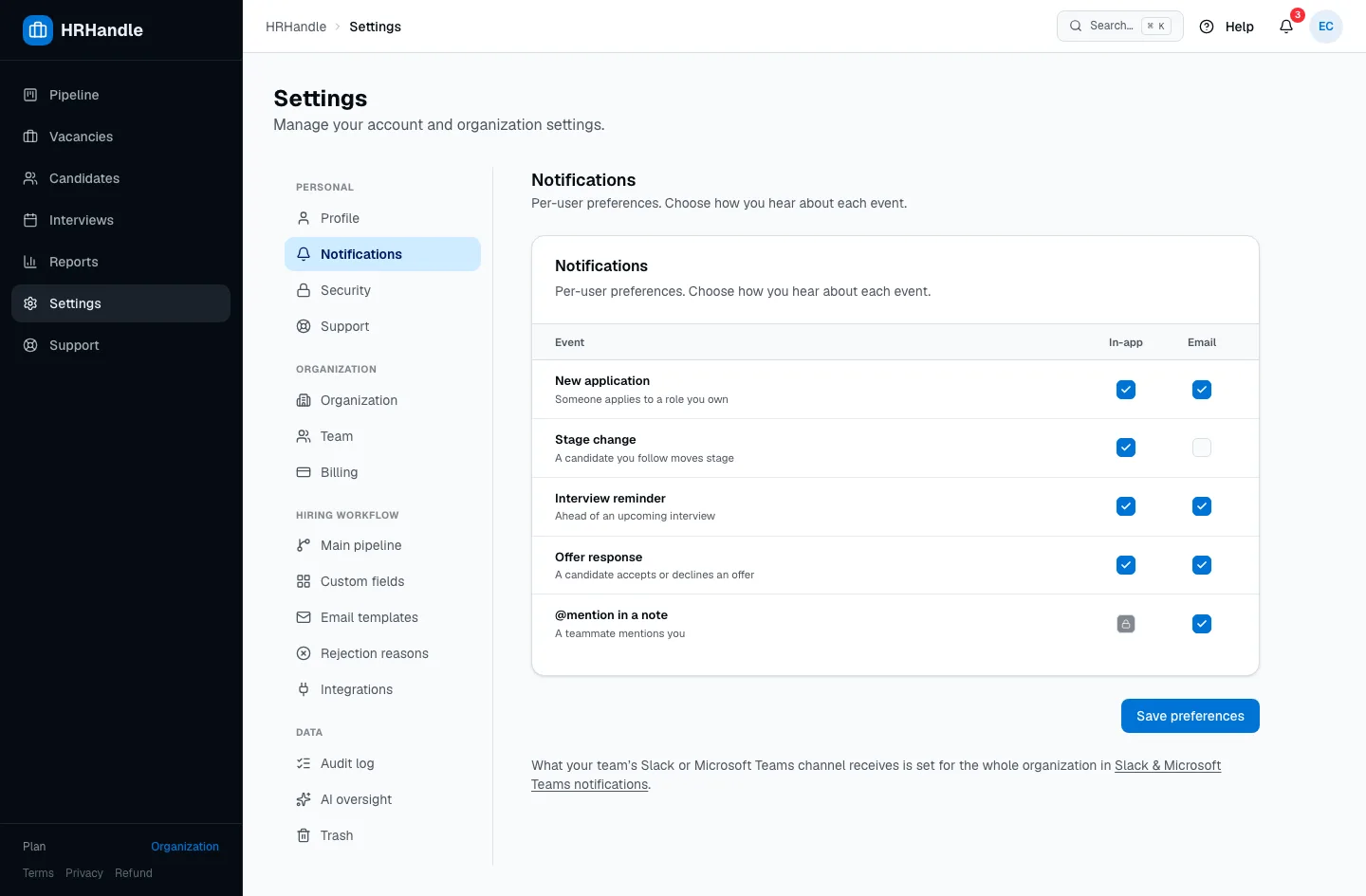
| Event | When it happens |
|---|---|
| New application | Someone applies through an apply link (owner and admins). |
| Stage change | A candidate is hired or withdraws their application (owner and admins). |
| Interview reminder | An interview is scheduled with you, and the day before it. |
| Offer response | A candidate accepts or declines an offer (owner and admins). |
| @mention in a note | A teammate mentions you in a note. |
Tick In-app for the bell in the header and Email for an email. In-app @mentions are always on. What your team's Slack or Microsoft Teams channel receives is set once for the whole organization — see Notifications, Slack and Teams. Click Save preferences to keep your changes.